Slop 3D guide
Getting started with Slop 3D
Slop 3D is a 3D editor for simple models and scenes, in your browser. Files open from your computer or Slop Drive and never leave your device.
Add shapes
- Click Add at the top, or right-click the view, and choose Cube, Sphere, Cylinder, Cone, Torus, Plane or Blob.
- The new shape shows in the Scene list on the left. Click it there or in the view to select it.
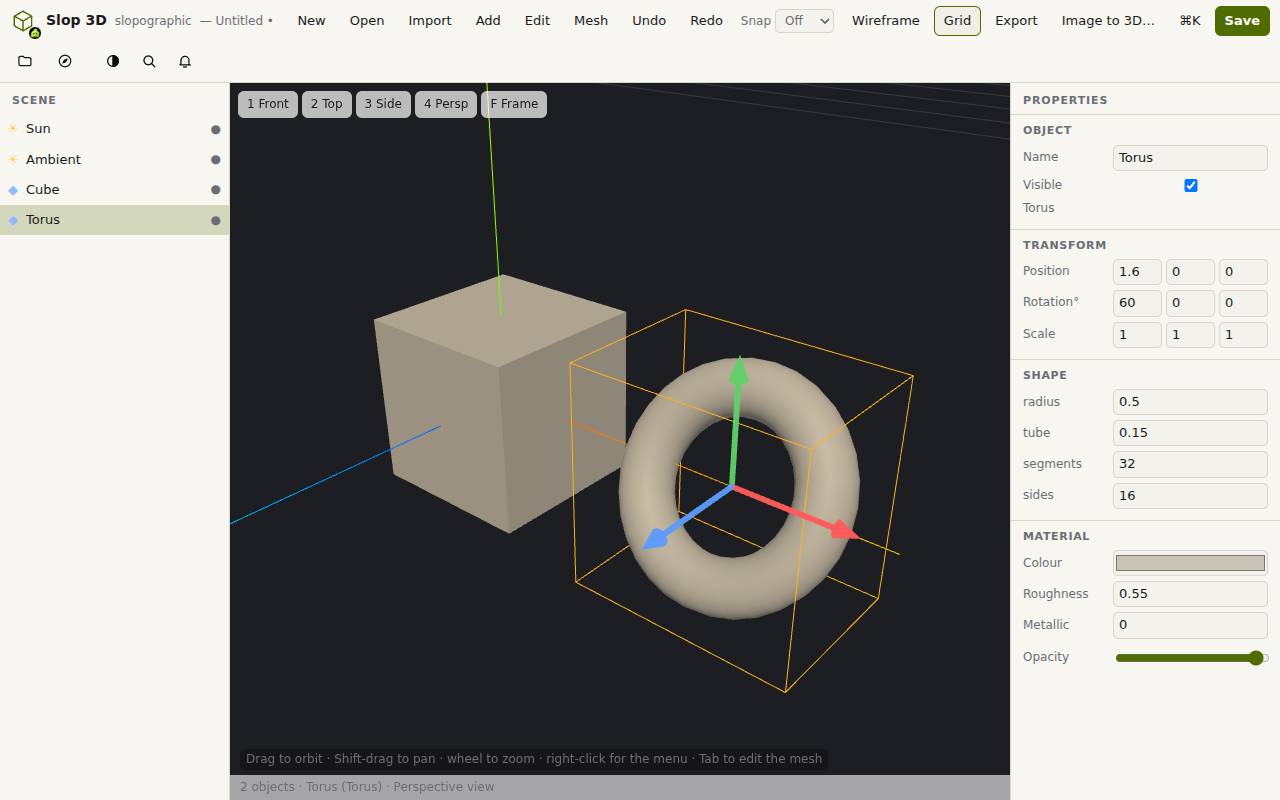
- Drag in the view to orbit, Shift-drag to pan and use the wheel to zoom. 1 Front, 2 Top, 3 Side and 4 Persp change the view, and F frames the selection.
Move, rotate and colour
Drag an arrow of the gizmo to move the selected shape along that axis. Snap, at the top, makes it move in steps.
Properties, on the right, has the exact Position, Rotation and Scale, the size of the shape, and its Material: Colour, Roughness, Metallic and Opacity.
Edit a mesh
- Select a shape and press Tab, or click Edit.
- Choose Vertex (1), Edge (2) or Face (3), and click parts to select them.
- Press G to move, R to rotate, S to scale or E to extrude. Move the mouse, or type a number, and press Enter. Escape cancels.
- Press Tab again to leave edit mode. The Mesh menu has more, such as subdivide and merge.
Open, save and export
Import (Ctrl+I) adds OBJ, STL, PLY, glTF, GLB, 3MF, DAE or FBX models. Save (Ctrl+S) keeps the scene in Slop Drive, and Download .s3d saves it as a file.
Export has OBJ, STL, PLY, GLB, glTF and USDZ, and Render PNG makes a picture of the view. Image to 3D… opens Slop Image to 3D to make a model from a photo.
Keyboard shortcuts
| Keys | What it does |
|---|---|
Tab | Edit the mesh |
1 / 2 / 3 | Vertex / edge / face (in edit mode) |
G / R / S / E | Move / rotate / scale / extrude (in edit mode) |
F | Frame selection |
Home | Frame all |
W | Wireframe |
Ctrl+D | Duplicate |
Ctrl+G | Group |
H | Hide or show |
Ctrl+Z / Ctrl+Shift+Z | Undo / redo |
Ctrl+S | Save to Slop Drive |