PhotoSlop guide
Getting started with PhotoSlop
PhotoSlop is a photo editor with layers, in your browser. Your pictures stay on your device: they are never uploaded.
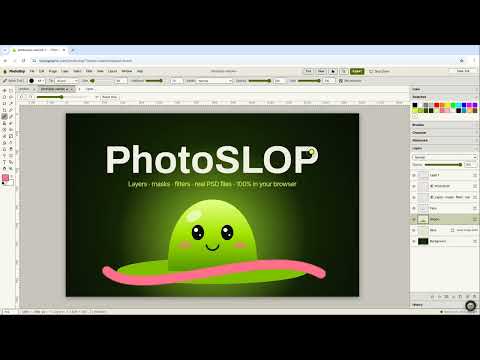
Open a photo
Each open picture gets a tab above the canvas. The tools are on the left, the options of the current tool are in the bar at the top, and the panels (Color, Swatches, Brushes, Character, Watermark, Layers, History) are on the right.
- Drop a photo on the window, or choose File, Open… (Ctrl+O). PSD files open with their layers.
- On your first visit, the blank canvas shows a welcome card. Click Try it with a sample photo to get a picture to practise on.
- File, New… (Ctrl+N) makes an empty canvas of the size you choose.
Adjust the colours
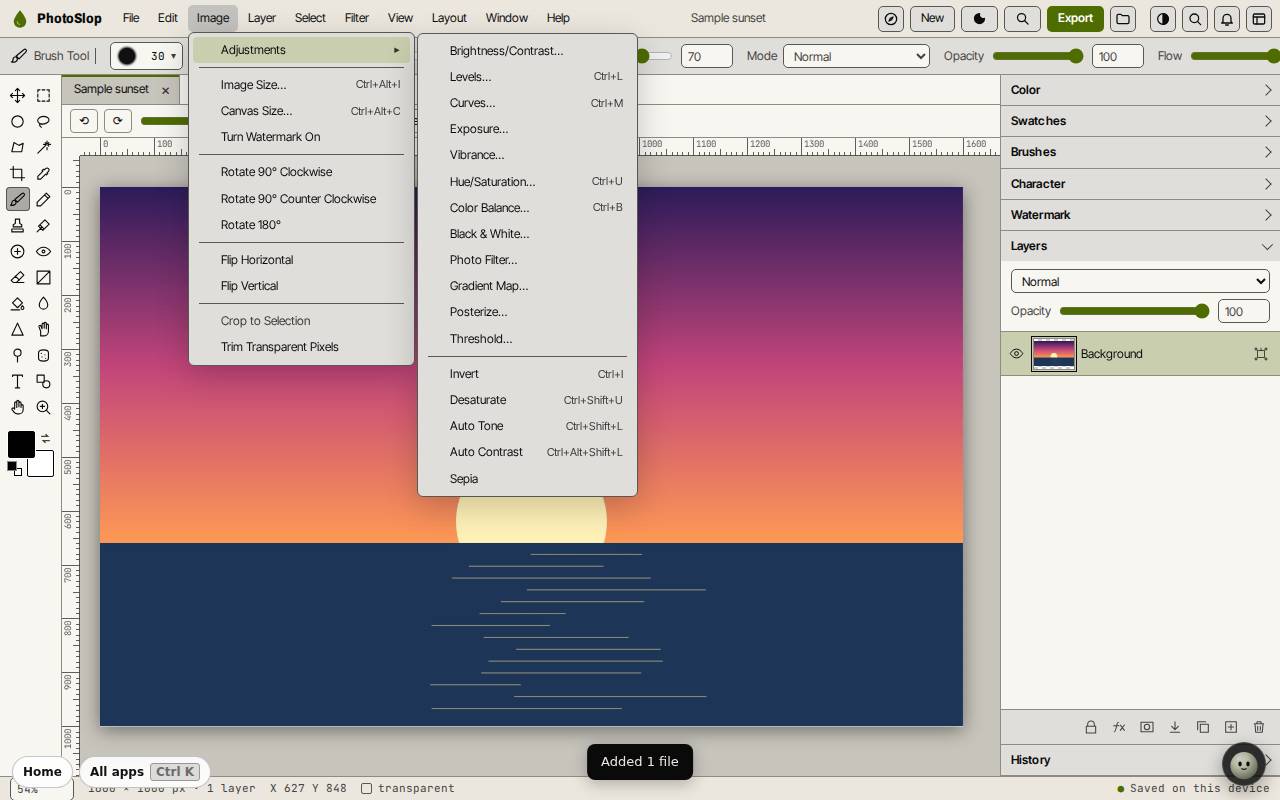
The Image menu also has Image Size…, Canvas Size…, rotate and flip. The Filter menu has blur, sharpen, noise and more.
- Open the Image menu and point at Adjustments.
- Pick one, such as Levels… (Ctrl+L), Curves… (Ctrl+M) or Hue/Saturation… (Ctrl+U).
- Move the sliders and watch the preview, then confirm.
Add text
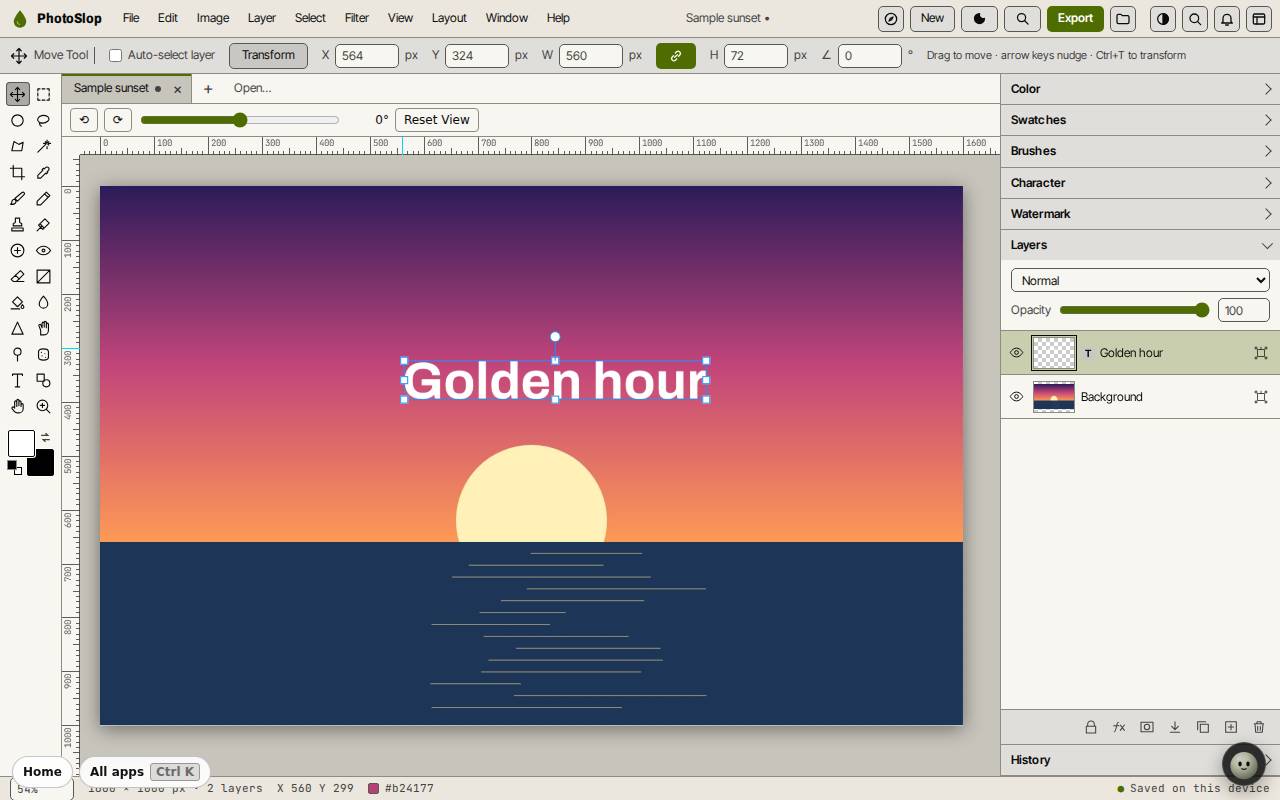
The text goes on its own layer, so you can move or change it later without touching the photo. Layer, Edit Text changes the words.
- Press T for the Horizontal Type Tool, or click the T in the toolbox.
- Click on the picture and type. Set the font and size in the Character panel or the bar at the top.
- Press Ctrl+Enter to finish.
- Press V for the Move Tool and drag the text into place.
Save and export
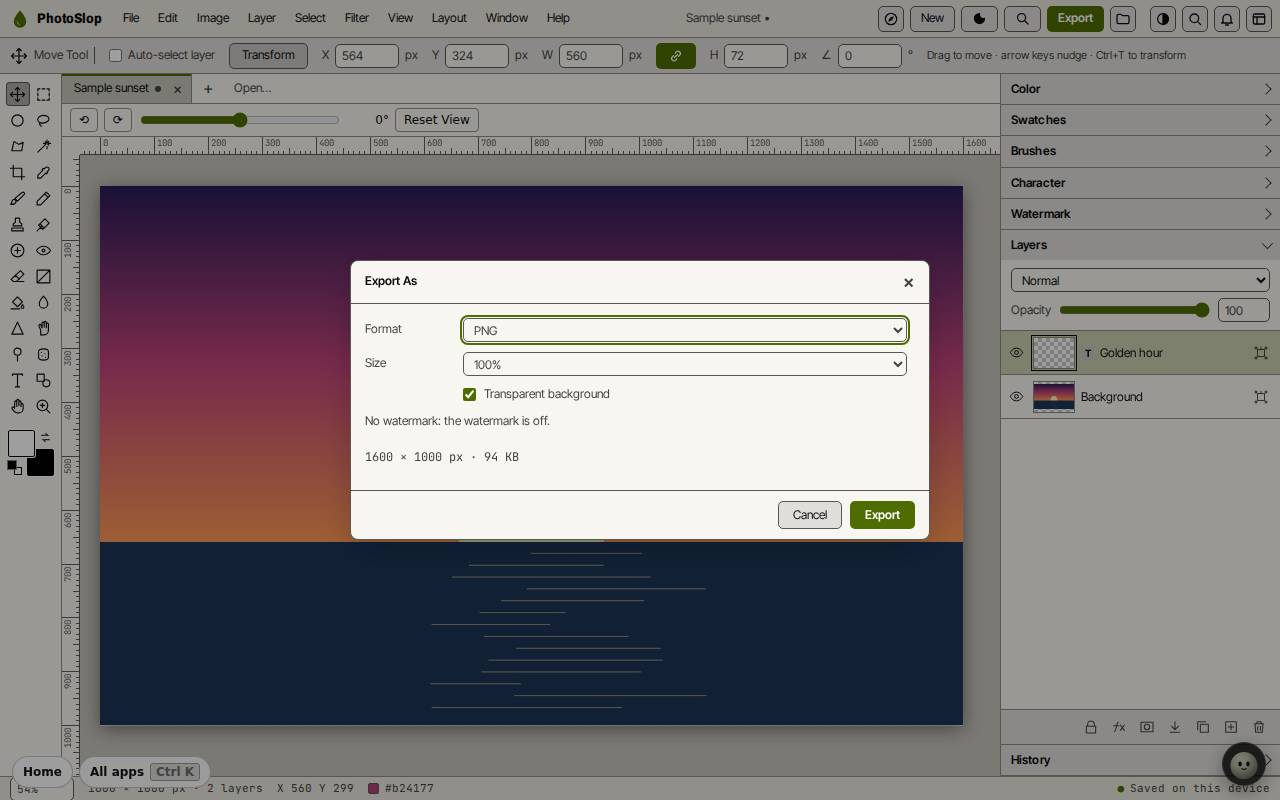
PhotoSlop keeps your work on this device as you go. Save (Ctrl+S) puts it in Slop Drive, and File, Download as Photoshop (.psd) keeps every layer in a file.
To get a flat picture, click Export at the top (or File, Export As…). Pick PNG, JPEG or WebP and a size, then click Export. Quick Export as PNG (Alt+Shift+Ctrl+S) skips the dialog.
Keyboard shortcuts
| Keys | What it does |
|---|---|
V | Move Tool |
M | Marquee |
L | Lasso |
W | Magic Wand |
C | Crop |
B | Brush |
E | Eraser |
T | Type |
I | Eyedropper |
X / D | Swap colours / default colours |
Ctrl+T | Free Transform |
Ctrl+Z / Shift+Ctrl+Z | Undo / redo |
Ctrl+O | Open |
Ctrl+S | Save to Slop Drive |
Alt+Shift+Ctrl+W | Export As |