SlopVector guide
Getting started with SlopVector
SlopVector is a vector editor in your browser, for logos, icons and illustrations. Shapes stay sharp at any size. Nothing is uploaded.
Find your way around
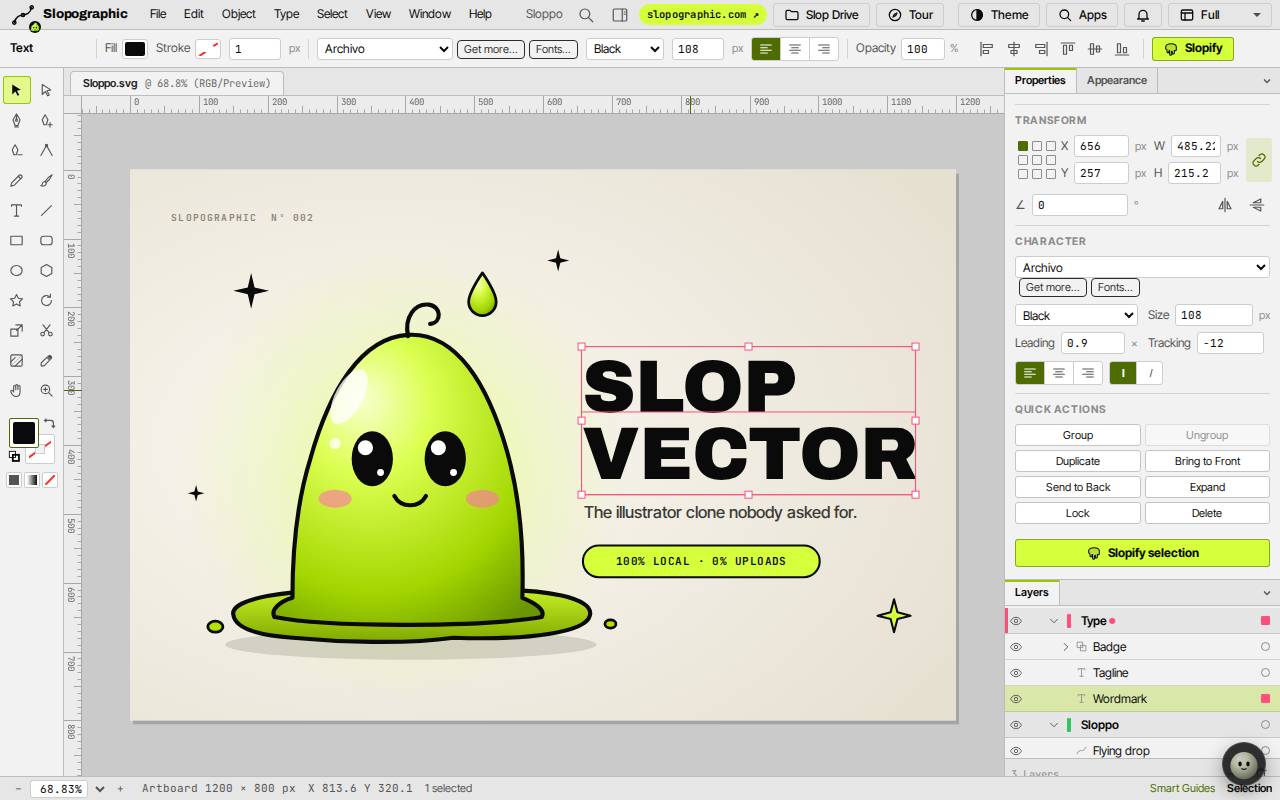
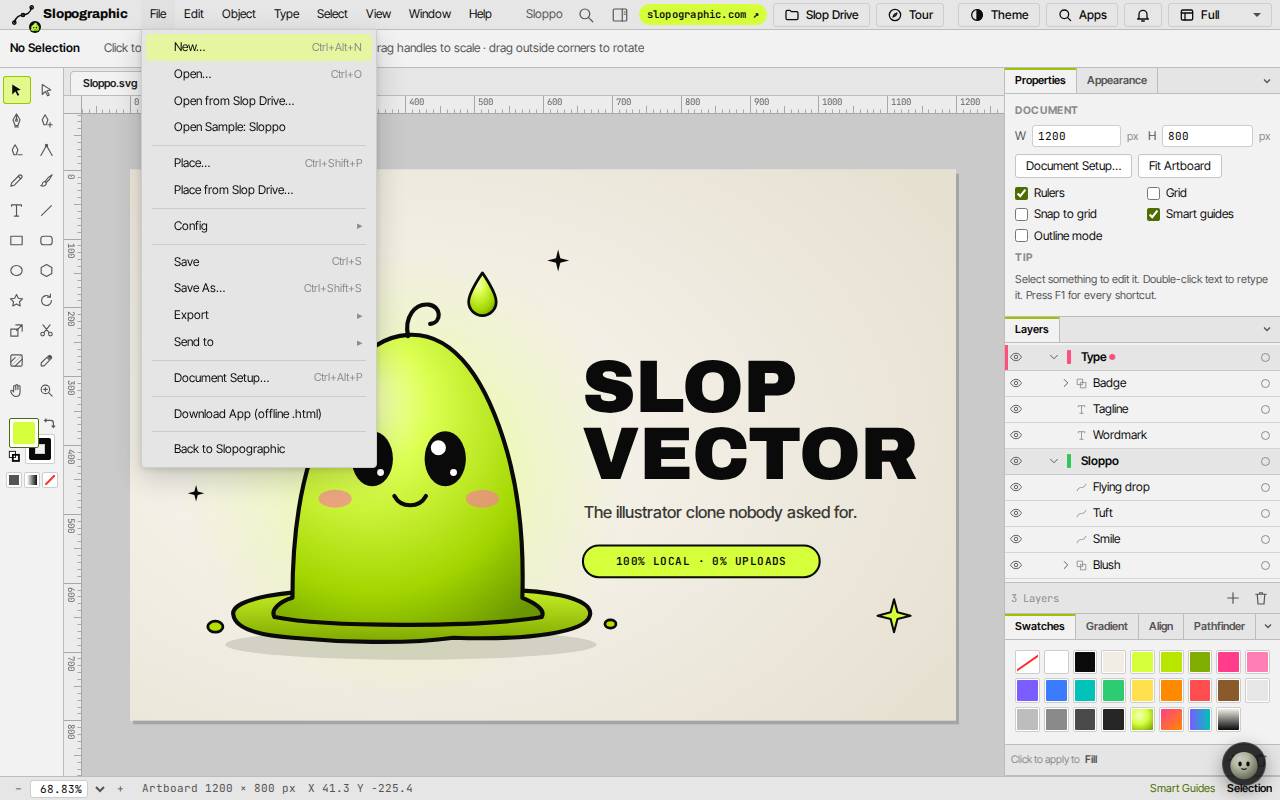
The first time, SlopVector opens a sample drawing of Sloppo. File, Open Sample: Sloppo brings it back. File, New… (Ctrl+Alt+N) starts an empty artboard.
The tools are on the left. The bar at the top shows the options of the tool or the selected object. The panels on the right are Properties, Appearance, Layers, Swatches, Gradient, Align and Pathfinder.
Draw shapes and paths
- Press M for the Rectangle tool, L for Ellipse or Shift+S for Star, and drag on the artboard.
- Press P for the Pen. Click to add corner points, drag to add curves, and press Enter to finish.
- Press T for Type and click to write text.
- Click the fill or stroke chip at the bottom of the toolbox twice to open the colour picker, or click a swatch in the Swatches panel.
Select and change
- Press V for the Selection tool and click an object. Drag it to move it, drag its handles to scale it, and drag just outside a corner to rotate it.
- The Properties panel shows its position and size, and for text the font, size and spacing.
- Press A for Direct Selection to move single points of a path.
- To combine shapes, select them and click Unite, Minus Front, Intersect or Exclude in the Pathfinder panel.
Save and export
Save (Ctrl+S) keeps the drawing in Slop Drive. Save As… (Ctrl+Shift+S) saves a copy under a new name.
File, Export has Export as SVG…, Export as PNG… (Ctrl+Shift+E), Export as JPG…, Export as PDF… and Export as .ai (PDF-compatible)….
Keyboard shortcuts
| Keys | What it does |
|---|---|
V / A | Selection / Direct Selection |
P | Pen |
T | Type |
M / L | Rectangle / Ellipse |
I | Eyedropper |
X | Swap fill and stroke |
D | Default fill and stroke |
Ctrl+G / Ctrl+Shift+G | Group / ungroup |
Ctrl+D | Duplicate |
Ctrl+Z / Ctrl+Shift+Z | Undo / redo |
F1 | Keyboard shortcuts |