Slop Sheets guide
Getting started with Slop Sheets
Slop Sheets opens spreadsheets so you can read, sort and filter them. It does not change the file. Nothing is uploaded.
Open a spreadsheet
Old .xls files are not supported. Save them as .xlsx first.
- Drop an .xlsx, .csv or .tsv file on the page, or click Open a spreadsheet. Open (Ctrl+O) at the top does the same.
- To try it, click Try it with a sample price list.
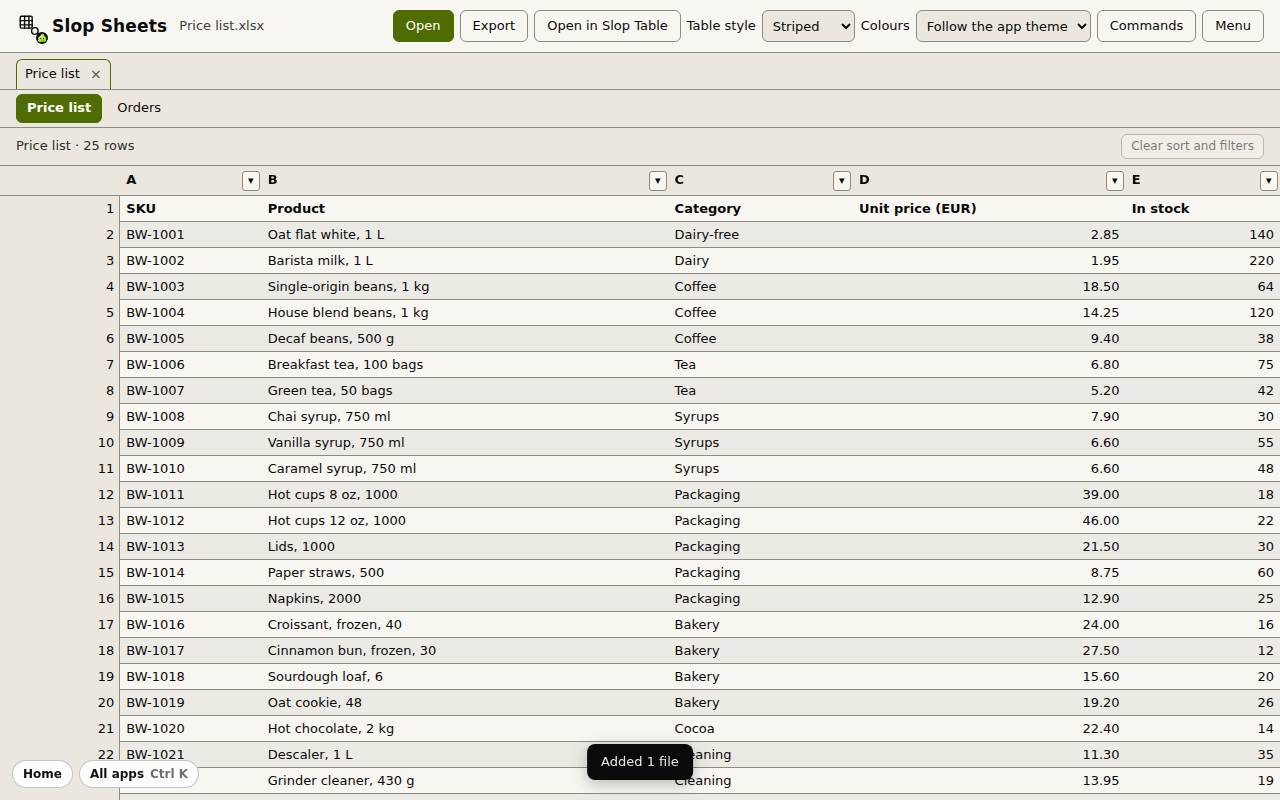
- Each file gets a tab under the top bar, and each sheet in the file gets a button below it. Click one to switch.
Sort and filter
- Click a column header to sort by it, A to Z. Click again for Z to A, and a third time to remove the sort.
- Click the small arrow in a header to filter that column. Tick the values to keep, type in Text contains, or pick a number test.
- Click Apply. The line above the grid says how many rows show and which sort and filters are on.
- Clear sort and filters puts everything back.
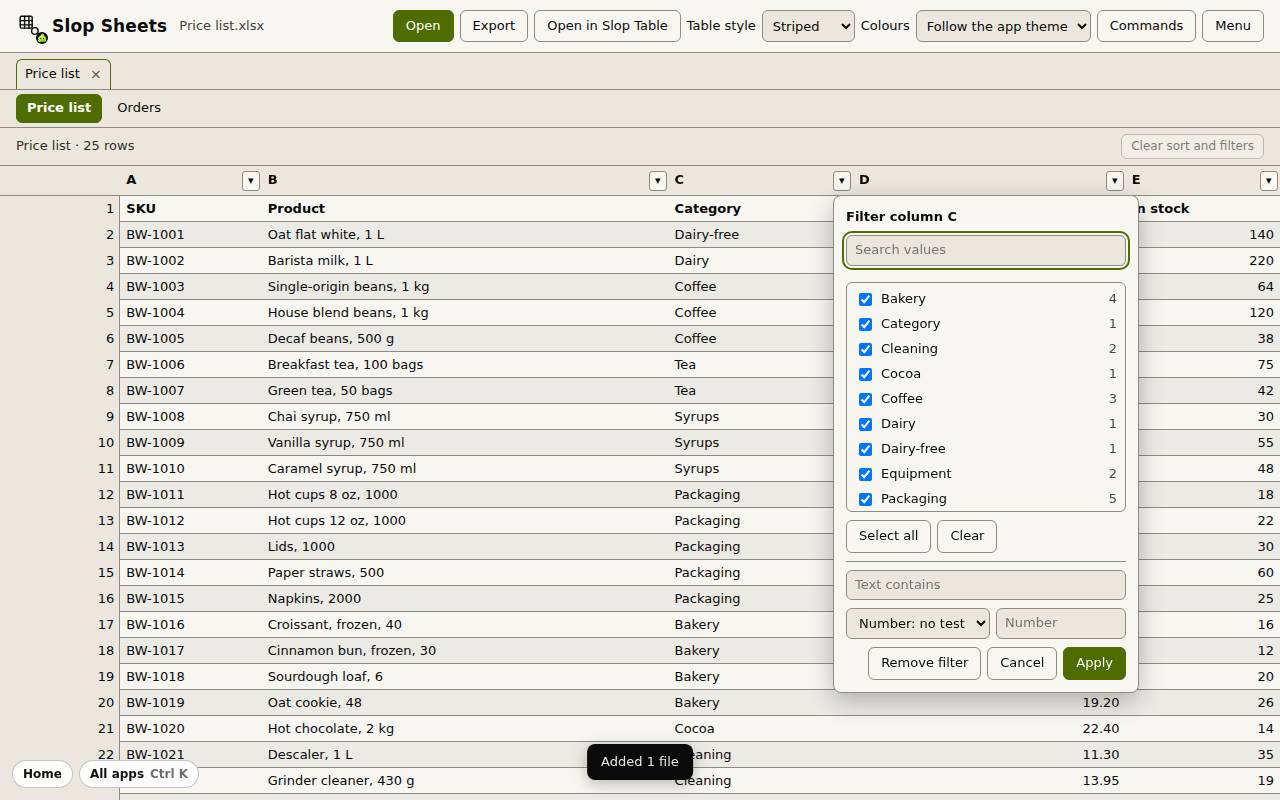
Tip: The first row of the file is treated as a row of data, so a header row is sorted and filtered with the rest.
Export or edit
Export saves the rows you see (after sorting and filtering) or all rows, as CSV, TSV or XLSX.
Open in Slop Table sends the current sheet to Slop Tables, where you can edit it. Table style and Colours change how the grid looks.