Slop Resize guide
Getting started with Slop Resize
Slop Resize changes the size of many pictures, and short videos, in one go. Everything happens in your browser.
Add your files
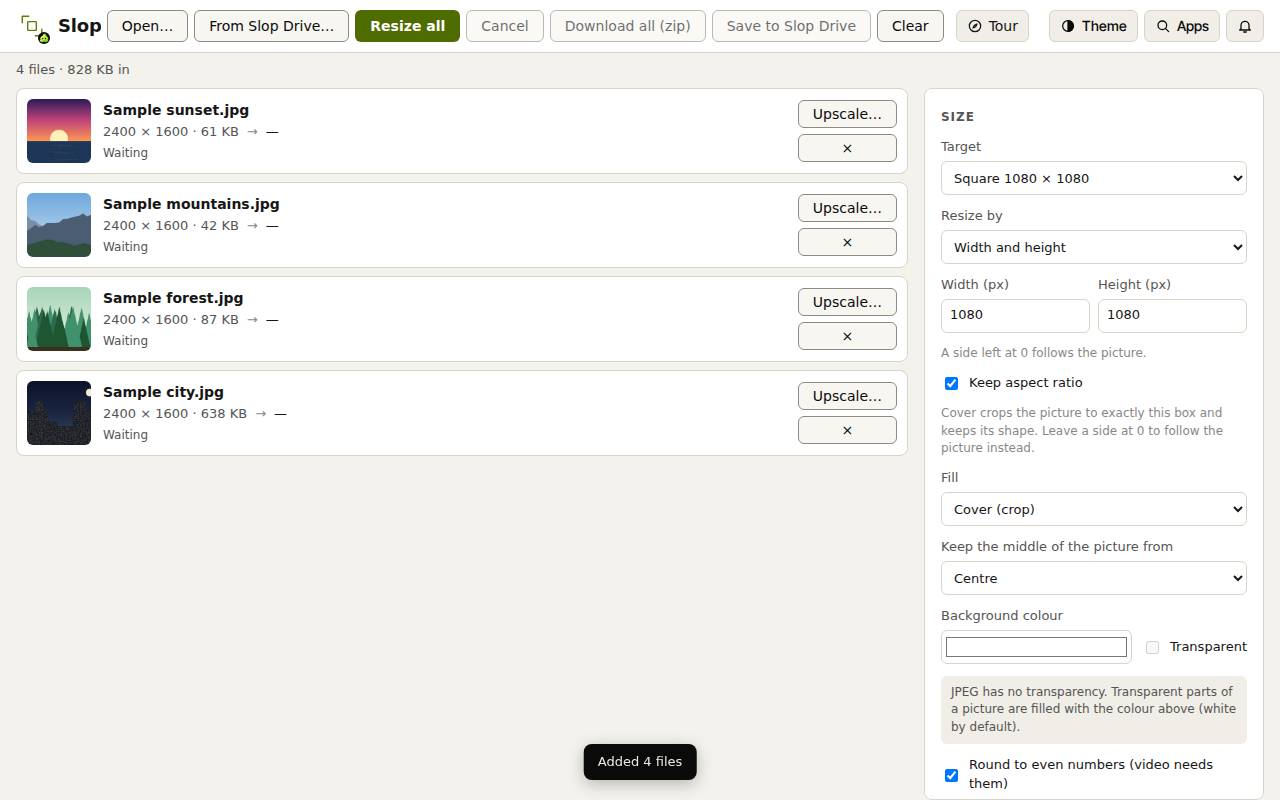
- Drop pictures or videos on the page, or click Open…. From Slop Drive… opens files you keep there.
- To try it, click Try it with 4 sample photos.
- Each file shows in the list with its size in pixels and in KB. Click × to take one out.
Choose the size
A side left at 0 follows the picture. Keep aspect ratio stops the picture from being squashed.
- Pick a Target, such as Square 1080 × 1080, or set your own size.
- Under Resize by, choose Width and height, Percentage, Long edge or Maximum file size (pictures).
- For width and height, choose a Fill: Fit (letterbox), Cover (crop), Stretch or Fit inside (no padding). With Cover, Keep the middle of the picture from sets which part stays.
- Pick the Picture format (JPEG, PNG, WebP or AVIF) and quality. Videos have their own format, quality and frame rate settings.
Resize and download
- Click Resize all. Each file shows its new size and Done.
- Click Download all (zip) for every file, or Download next to one file.
- Save to Slop Drive keeps the results in Slop Drive.
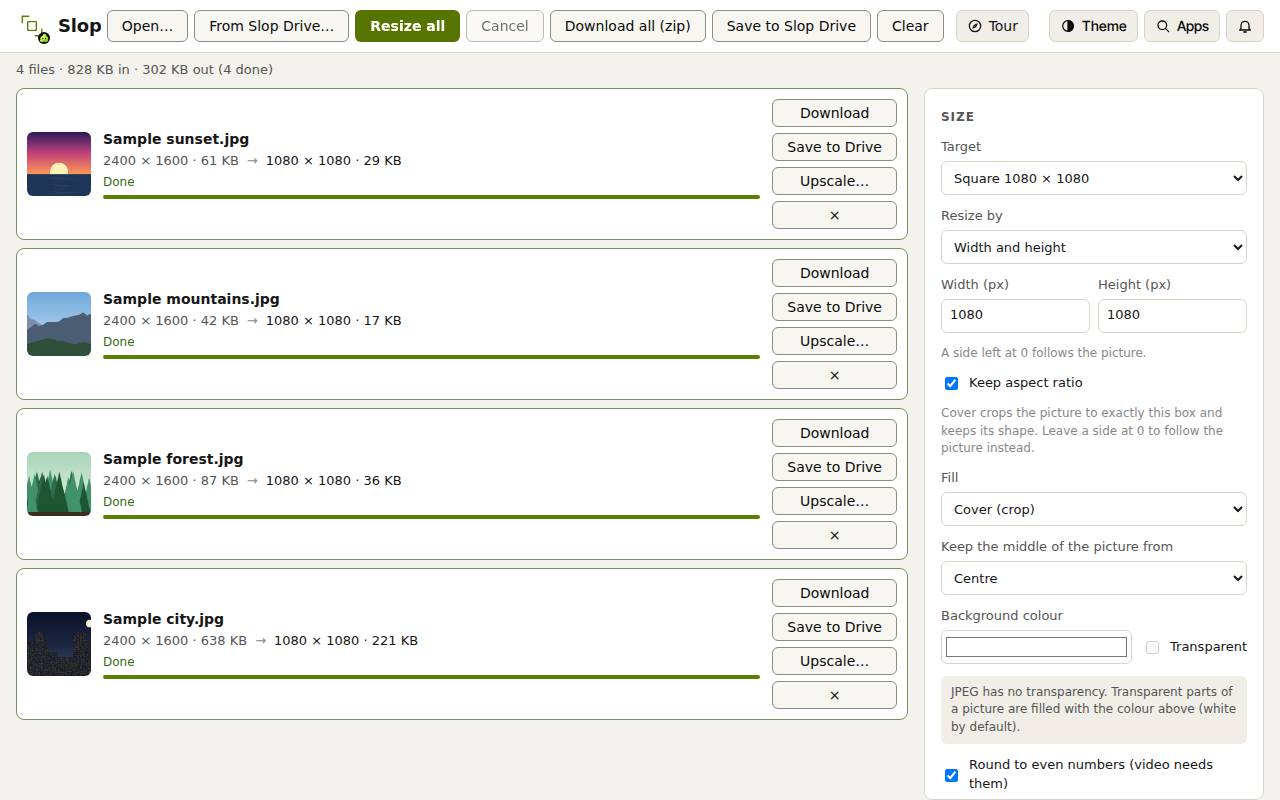
Tip: To make a small picture bigger and sharper, click Upscale… next to it to open it in Slop Upscale.