Slop Inventory guide
Getting started with Slop Inventory
Slop Inventory is your product catalogue and stock book. Quotes, orders and invoices pick products from it, and it keeps count of what you have in each location.
Add a product
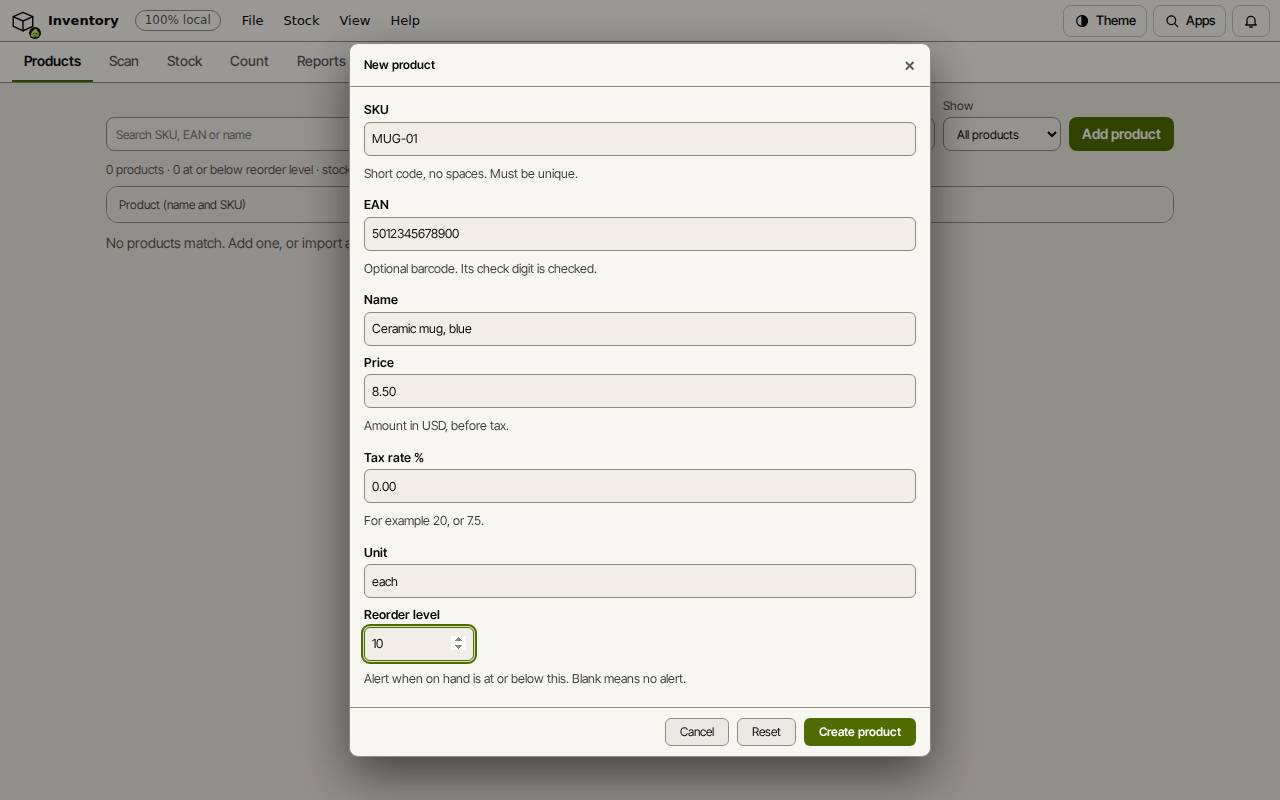
- On the Products tab, choose Add product.
- Type a SKU (a short code with no spaces), the Name and the Price before tax.
- Add the EAN barcode if it has one, and the Tax rate %.
- Set a Reorder level to be warned when stock gets low, and choose Create product.
Tip: Have a list already? On the Data tab, Import products from CSV… adds them all at once.
Move stock
The Stock tab shows a product by location, with every movement. Use Receive when goods come in, Sell when they go out, Adjust to correct a number, and Transfer to move stock between locations. The first location is called main.
Scan barcodes
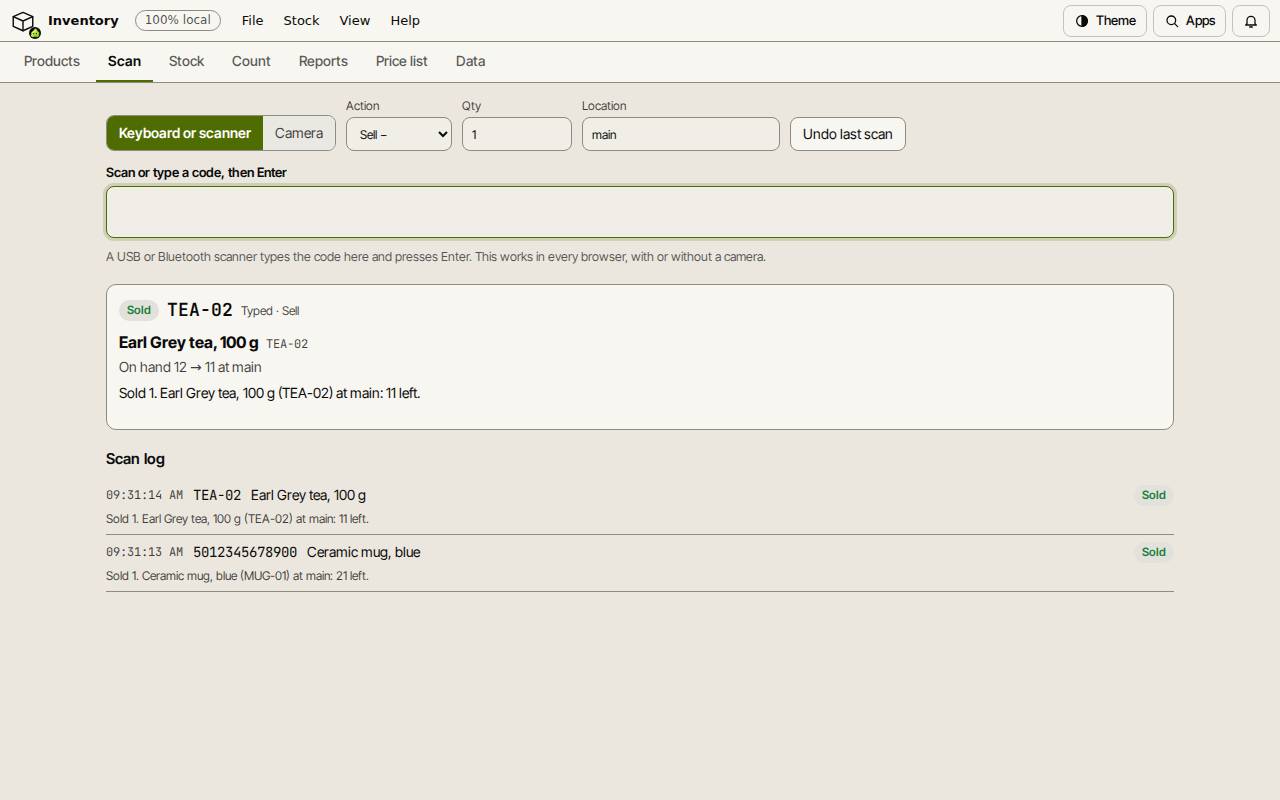
- Open the Scan tab and pick an Action: Receive +, Sell −, Count or Look up only.
- Set the Qty and the Location.
- Scan a barcode with a USB or Bluetooth scanner, or type a SKU or EAN and press Enter. Choose Camera to use the camera instead, where the browser supports it.
- Each scan shows the product and its new stock. Undo last scan takes the last one back.
See what is low
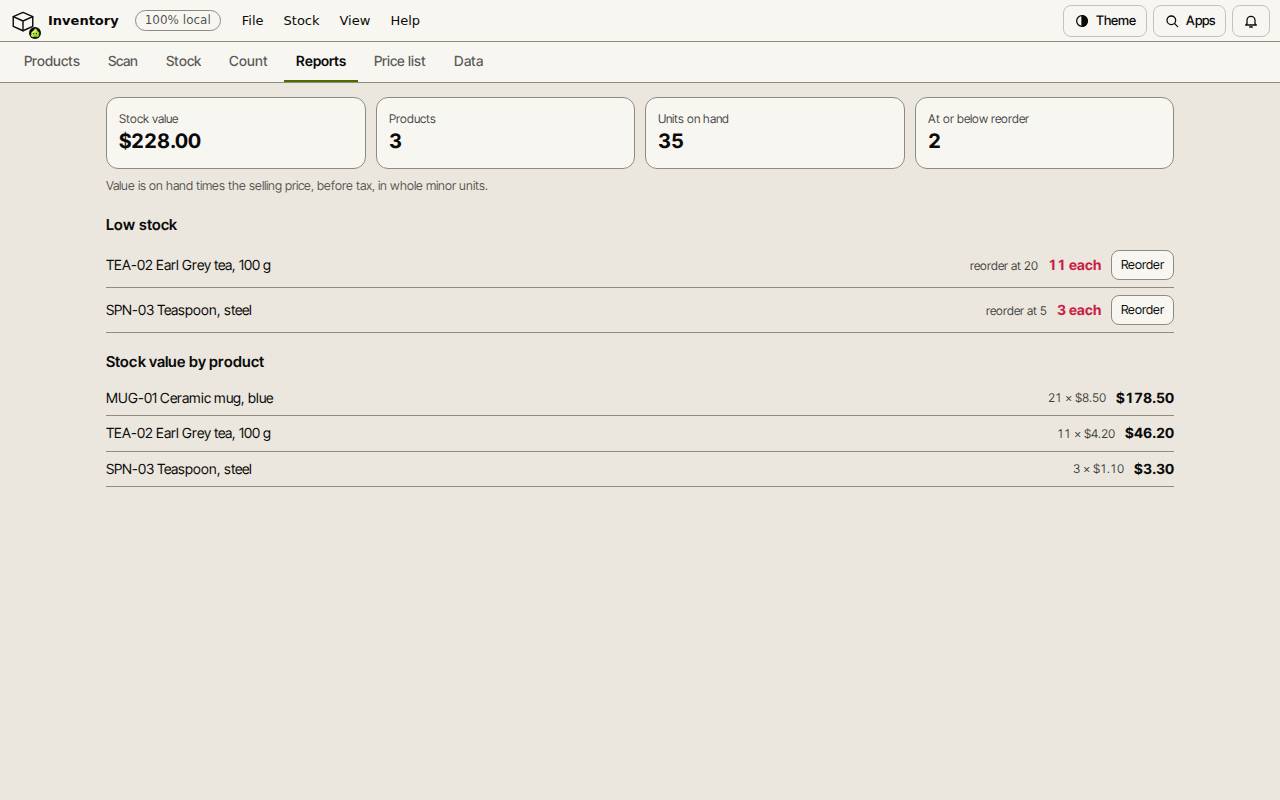
The Reports tab shows the stock value, the number of products and units, and the Low stock list: products at or below their reorder level. Reorder starts a purchase order in Slop Purchases for that product.
The Count tab walks you through a stock count and posts the differences. The Price list tab prints your prices.
Keyboard shortcuts
| Keys | What it does |
|---|---|
Enter | Scan the code typed in the Scan box |
Ctrl+K | Search commands (Cmd+K on a Mac) |