Slop Orders guide
Getting started with Slop Orders
Slop Orders keeps track of what customers have ordered, from the first draft to the delivery and the invoice. It shares customers and products with the other business apps.
Take an order
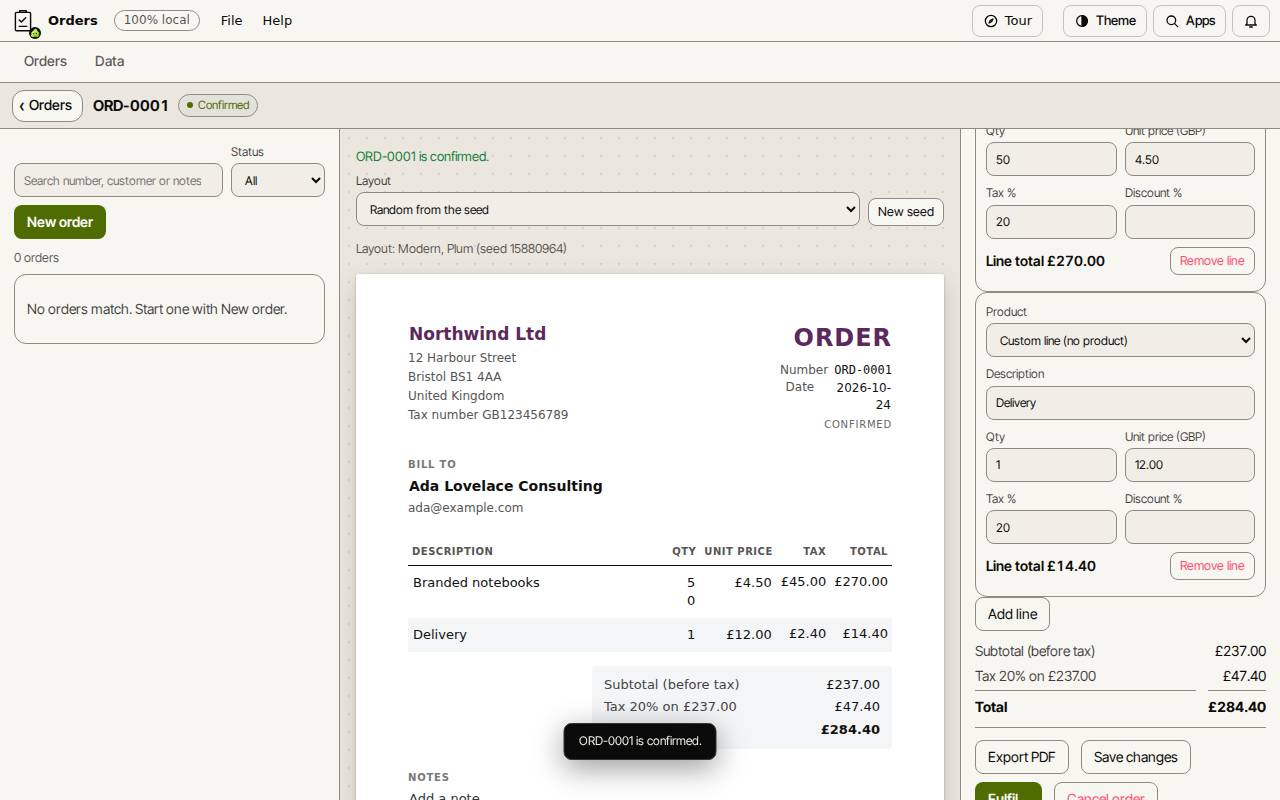
- Choose New order.
- Pick a Customer, or choose New customer.
- For each line, pick a Product from Slop Inventory to fill in its price and tax, or keep Custom line (no product) and type it.
- Choose Save draft, then Confirm order.
Fulfil and deliver
When the goods go out, choose Fulfil…. The product lines are taken out of stock at the main location. If there is not enough stock, nothing changes and you are told why.
Delivery note shows a note to print and pack with the goods.
Invoice it
Choose Convert to invoice. A draft invoice is made in Slop Invoices with the same customer, lines and notes. The order shows a link to it. Issue it there.
Find an order
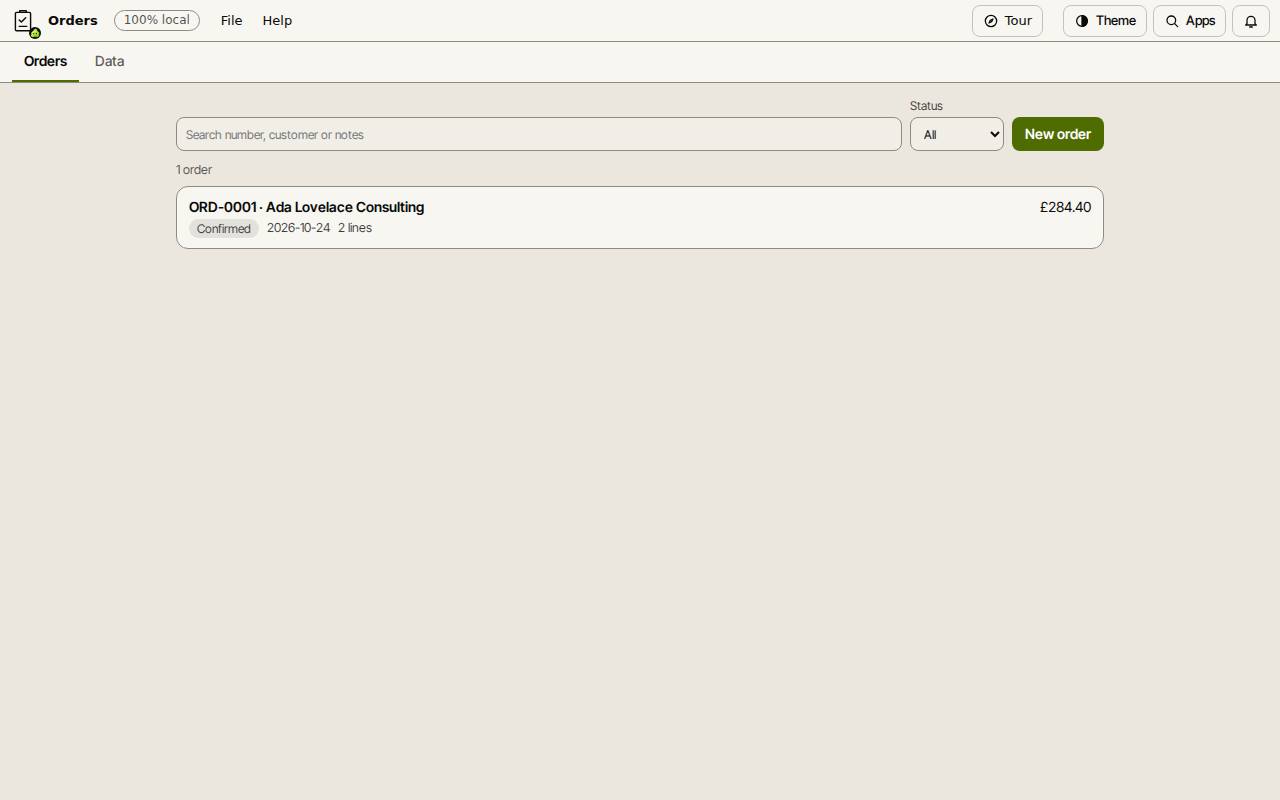
The Orders list shows the newest first. Search by number, customer or notes, or filter by Status. Right-click a row for Open, Confirm, Fulfil, Cancel and Convert.
Orders are never deleted, so their numbers stay gapless. Cancel order closes one you do not need.
Keyboard shortcuts
| Keys | What it does |
|---|---|
Ctrl+K | Search commands (Cmd+K on a Mac) |