SlopLabel · free, in your browser
View and edit ZPL label code
See what a ZPL file will print before it reaches the Zebra printer. SlopLabel draws the label from the code, turns it into objects you can move and change, and writes ZPL again at 152 to 600 dpi.
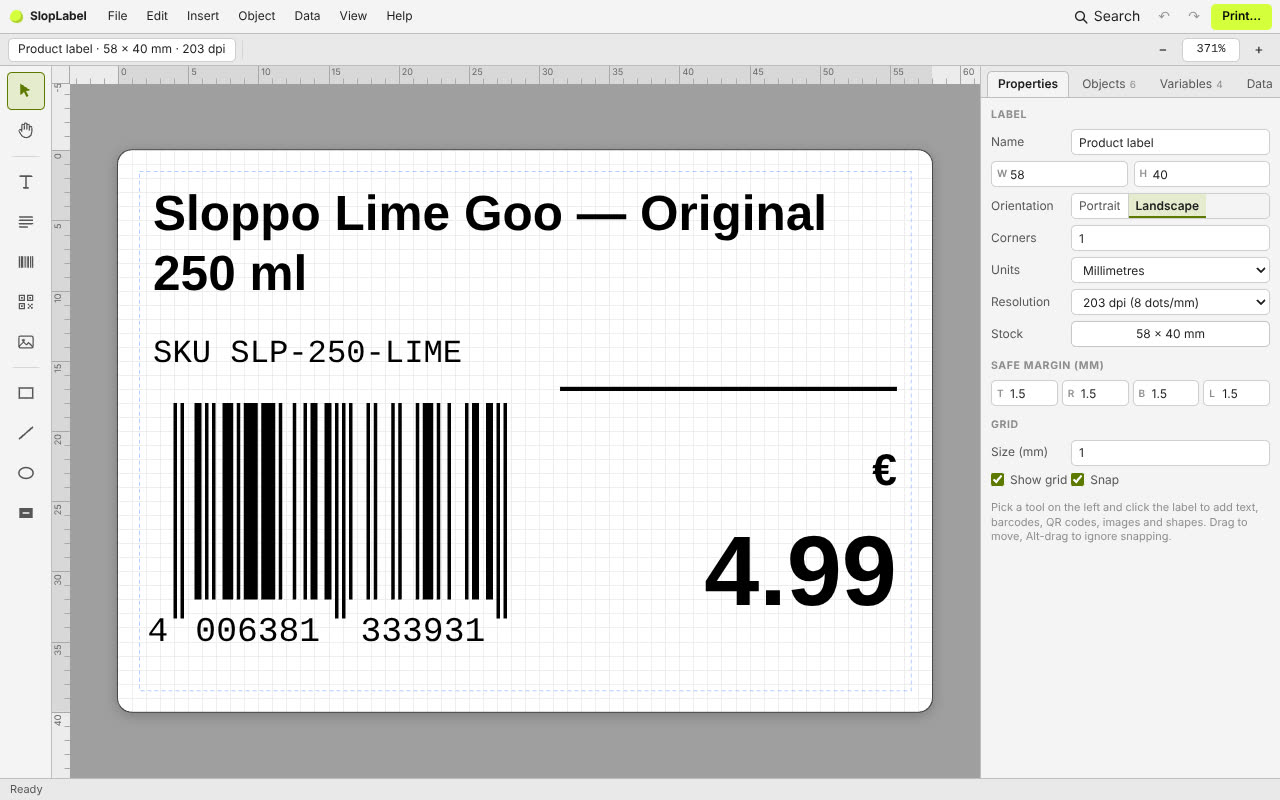
How to do it
- Choose File > Import ZPL… and paste the code, or open a .zpl, .prn or .txt file.
- The label appears with its text, barcodes, boxes, lines and graphics as editable objects.
- Change what you need, and set the size, dpi, darkness and speed in Label setup.
- In Print…, choose ZPL (Zebra) to download the new code, ZPL preview to check it, or PDF and PNG.
The import reads the common commands: ^FO and ^FT positions, ^A fonts, ^FB text blocks, the ^B barcode commands (Code 128 with GS1, EAN, UPC, Code 39, Code 93, Interleaved 2 of 5, Codabar, QR, Data Matrix, PDF417 and Aztec), ^GB, ^GE, ^GC and ^GD shapes, and ^GF graphics. ^FN fields become prompts and ^SN becomes a counter.
Your files stay on this device: SlopLabel runs in your browser, with no upload, no account and no watermark.
Questions
Can it print straight to my Zebra printer?
Not directly. Download the .zpl file and send it to the printer with your usual tool, or print through the browser as a picture.
Which dpi can I use?
152, 203, 300 or 600 dpi. 203 dpi is the default, which most desktop Zebra printers use.
Does it also write EPL or TSPL?
Yes. Besides ZPL, the print dialog exports EPL2 and TSPL for TSC printers.
Is my label code uploaded?
No. The ZPL is read and drawn in your browser.
More with SlopLabel
- Print labels from an Excel or CSV file
- Print on Avery label sheets
- Make an SSCC pallet label
- A free BarTender alternative in your browser
Related apps
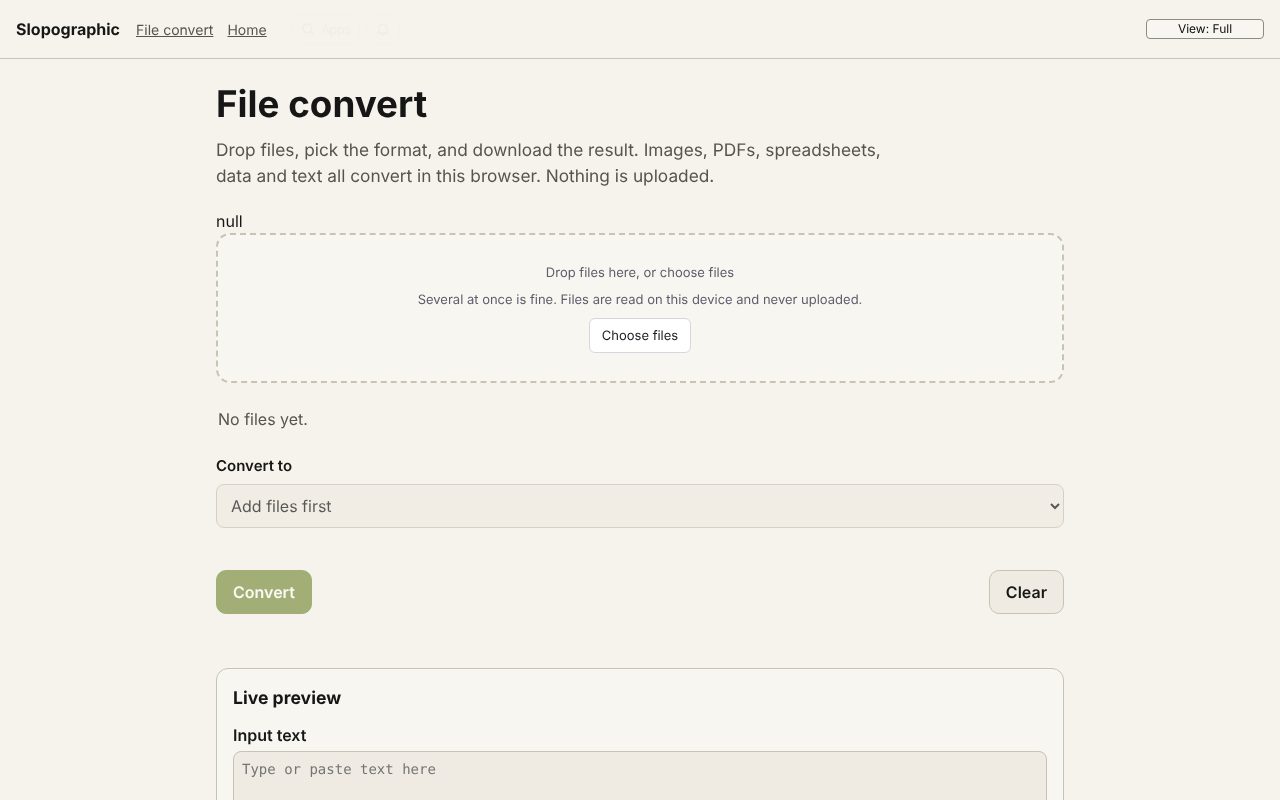 File convert
In development
Images, PDFs, data and text, converted on your device.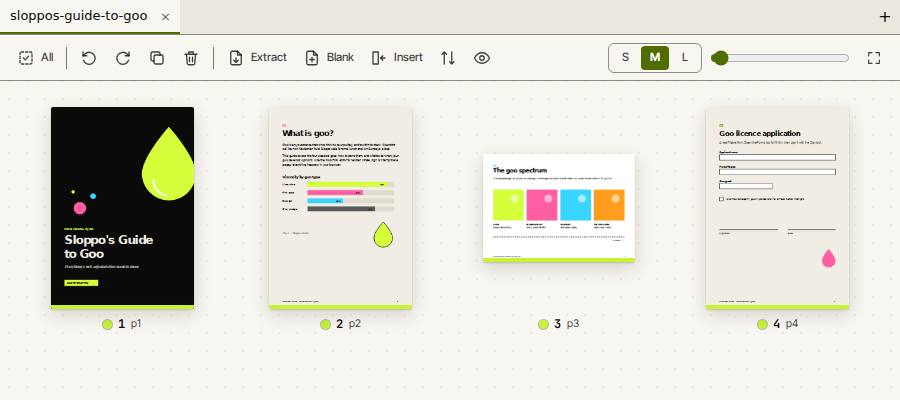 Slop PDF
Live
Organise, edit and sign PDFs. Nothing uploaded.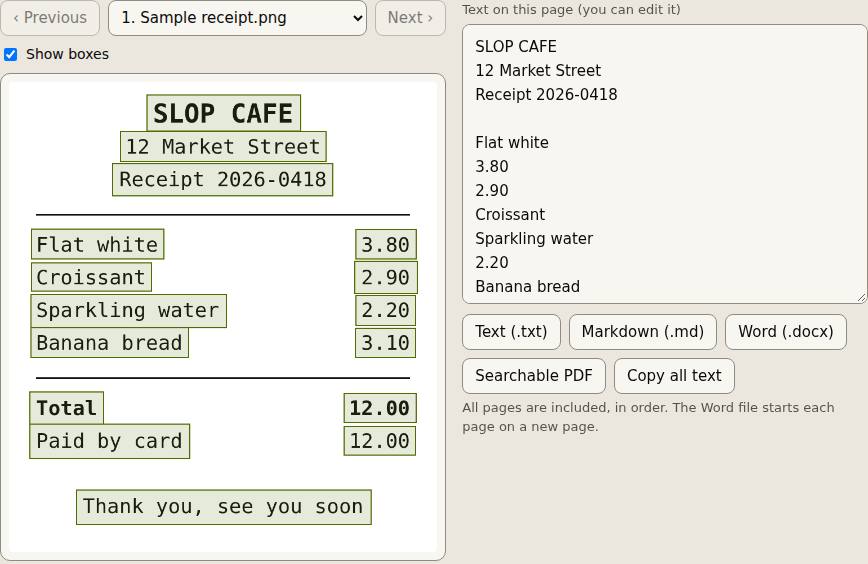 Slop OCR
Beta
Read text from images and scanned PDFs on your device. Nothing uploaded.