Slop To-do guide
Getting started with Slop To-do
Slop To-do keeps your tasks in lists, in this browser. Tasks with a due time also show in Slop Calendar.
Add tasks
Type in Add a task, then press Enter. It goes into the list you are looking at (the Inbox otherwise), and is due today when you are on the Today view.
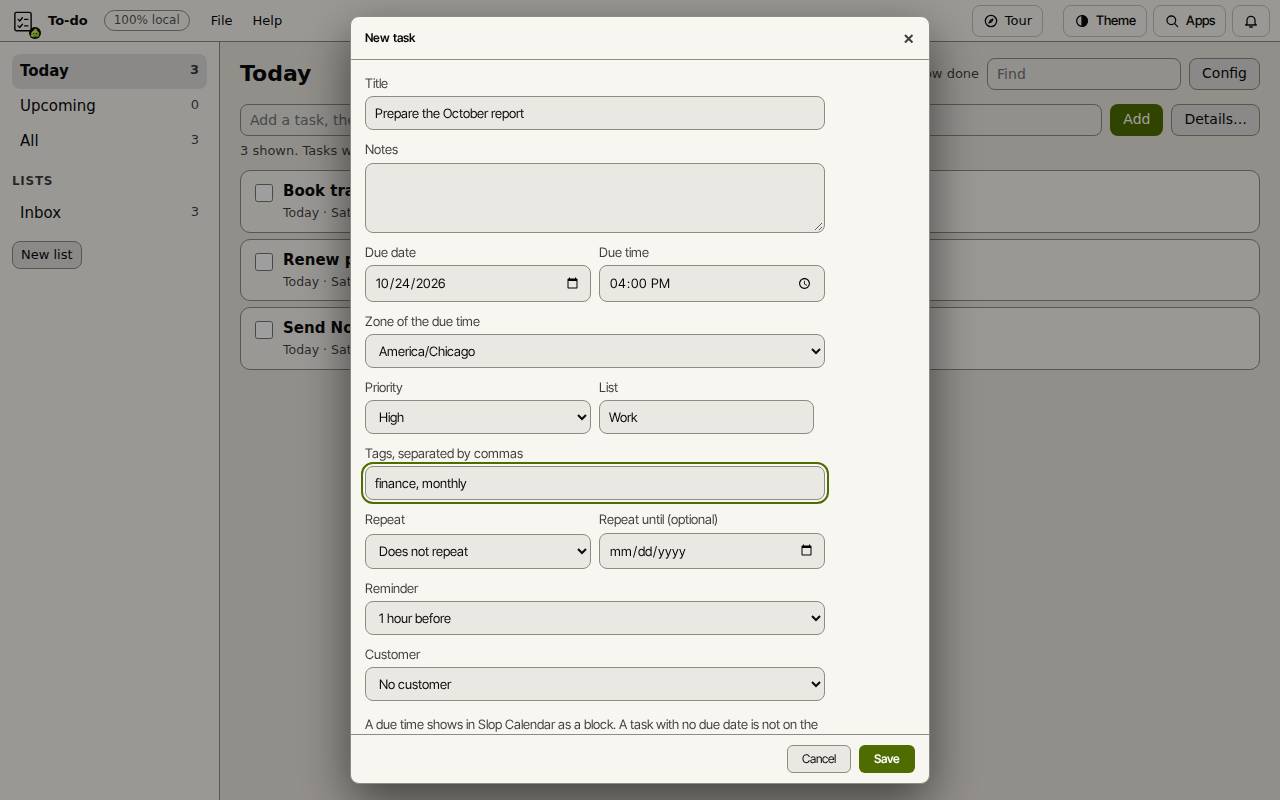
For more, choose Details…. Set the Due date and Due time, the Priority, a List, Tags separated by commas, a Repeat, a Reminder and a Customer, then choose Save.
Work through them
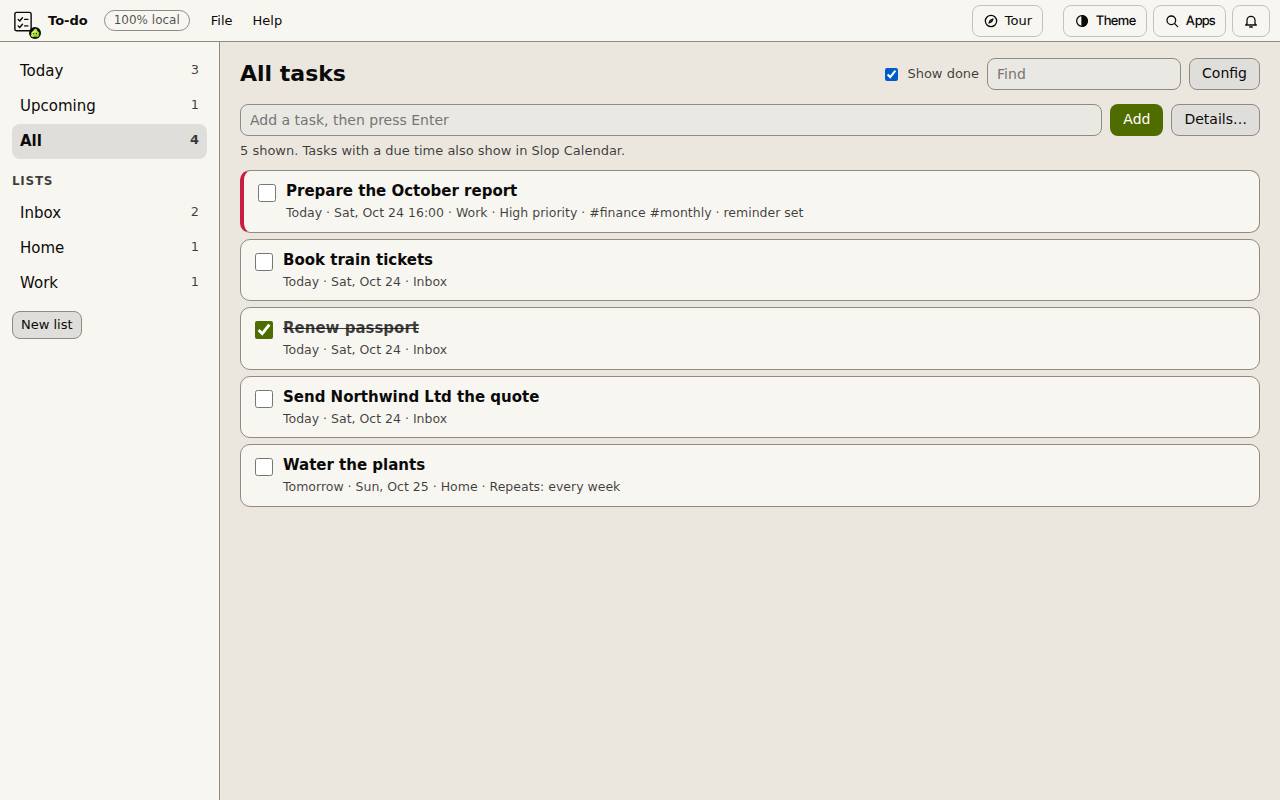
Today, Upcoming and All on the left show what is due, and your lists sit below them. New list adds one. Tick a task to complete it; Show done shows the ticked ones again. Click a task to change it or add subtasks. Find searches your tasks.
In your calendar
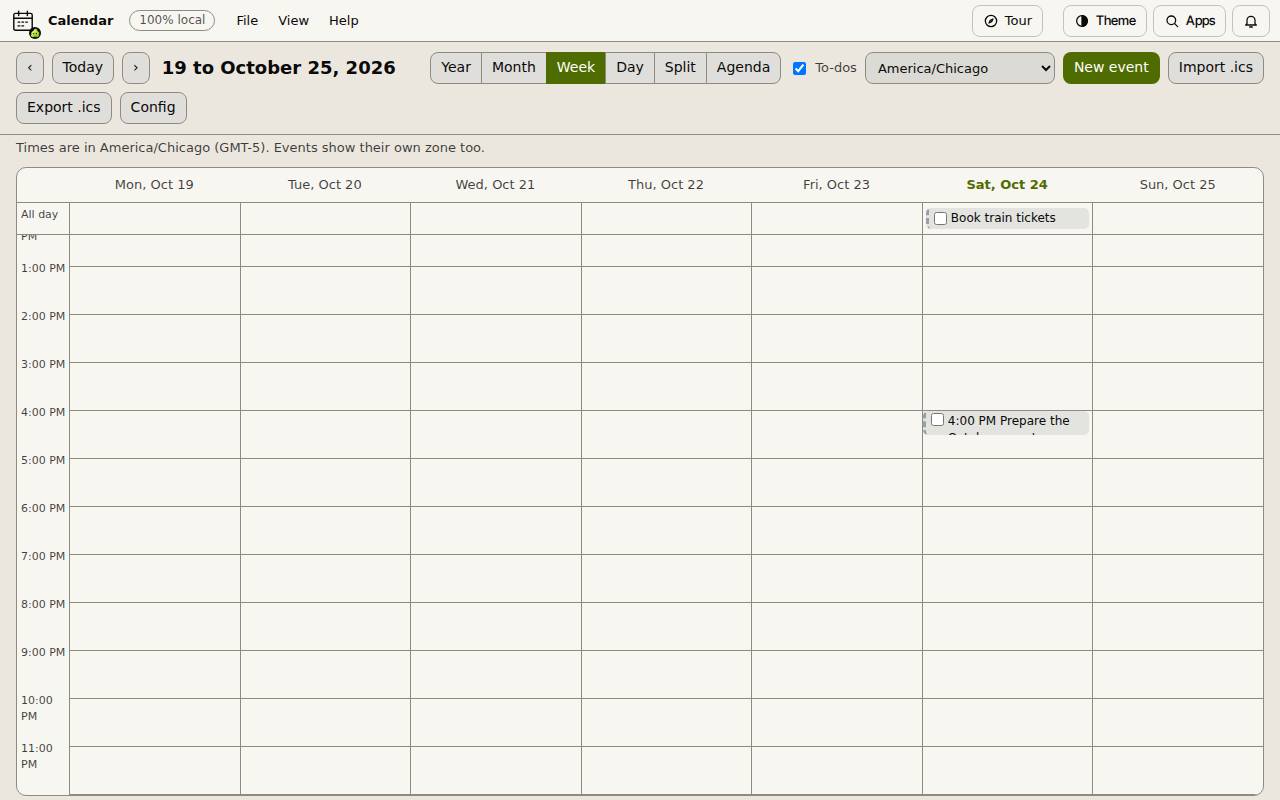
A task with a due date shows in Slop Calendar when its To-dos box is ticked: as a block at its time, or at the top of the day when it has no time. A task with no due date is not on the calendar. Reminders show in Slop Reminders.
Keyboard shortcuts
| Keys | What it does |
|---|---|
N | New task |
T | Today |
U | Upcoming |
A | All tasks |
F | Find a task |
H | Show or hide done tasks |