Slop Photo Sorter guide
Getting started with Slop Photo Sorter
Slop Photo Sorter shows your photos one at a time so you can keep the best. They are sorted in this browser and not kept after you close the page.
Add your photos
- Drop photos or a whole folder on the page, or click Choose files or Choose a folder….
- To try it, click Try it with 8 sample photos.
- The photos show as a grid. Click Start sorting.
Like, dislike and tag
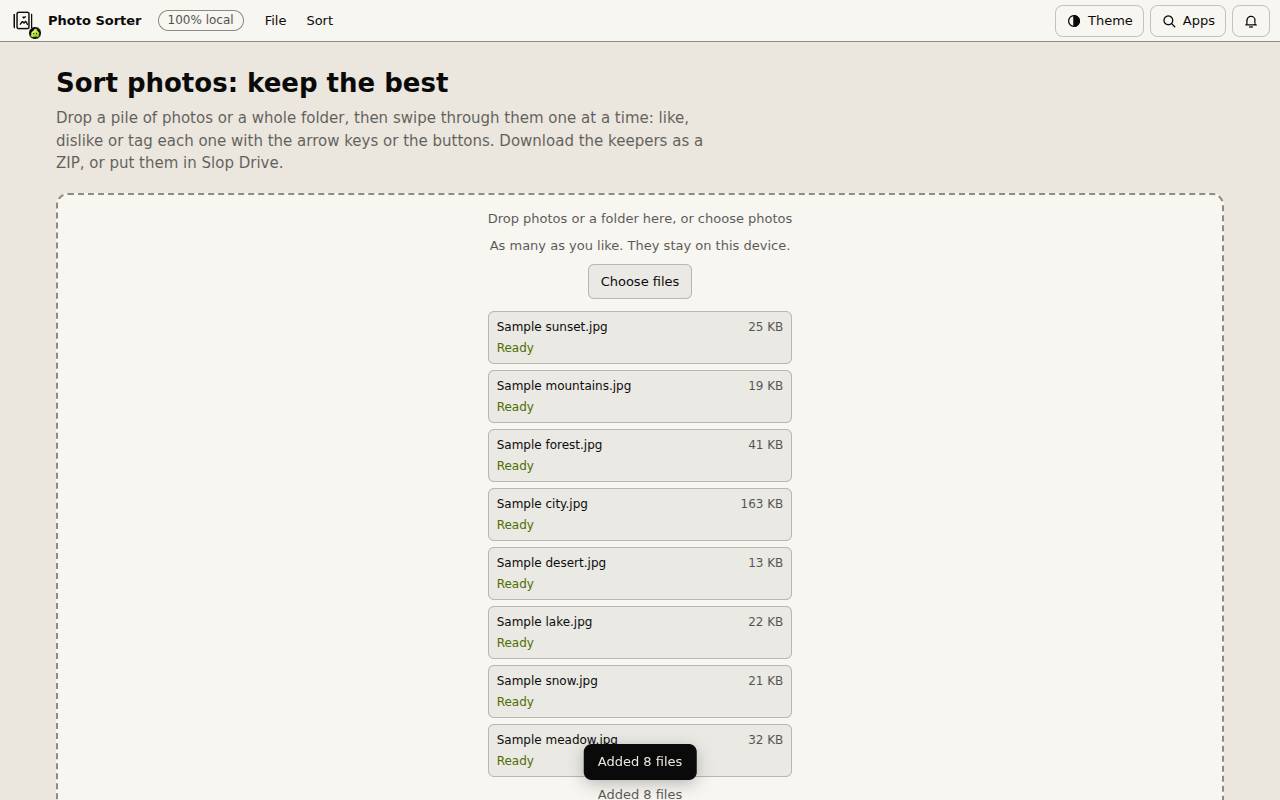
The top shows which photo you are on, how many you liked and disliked, and how many are left.
- Press the up arrow, or click Like, to keep a photo and go to the next one.
- Press the down arrow, or click Dislike, to drop it.
- The left arrow goes back and the right arrow skips ahead, without a decision.
- To tag a photo, type in Add a tag and click Add tag, or start typing on the photo. Commas separate several tags.
- Click Done, or press Escape, to go back to the grid.
Keep the best
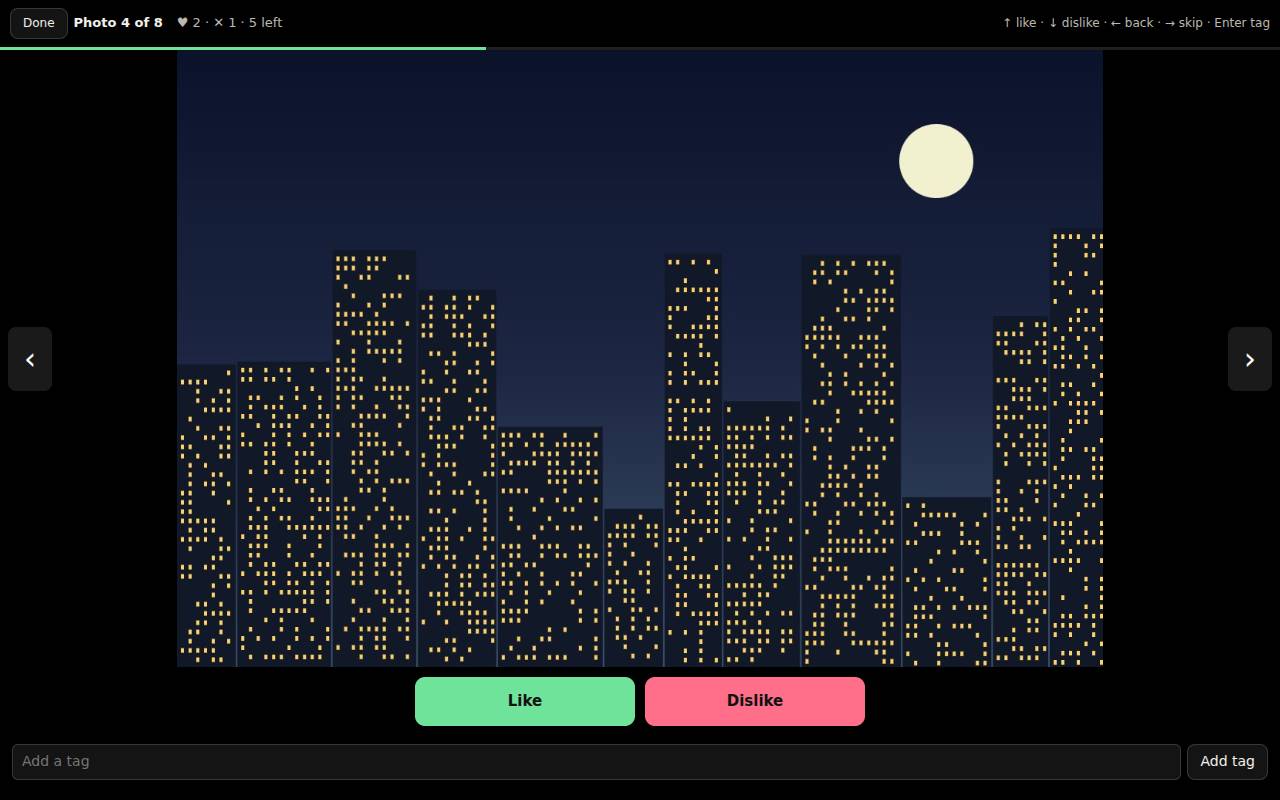
Back on the grid, the buttons show All, Not sorted yet, Liked, Disliked and each tag. Click a photo to sort from there.
Download liked (ZIP) saves the photos you liked. Save liked to Slop Drive keeps them there. Download the list (CSV) saves every name with its decision and tags.
Tip: Nothing is saved when you close the page, so download or save the keepers first.
Keyboard shortcuts
| Keys | What it does |
|---|---|
Up arrow | Like and next |
Down arrow | Dislike and next |
Left arrow | Back |
Right arrow | Skip ahead |
Enter, or type | Add a tag |
Escape | Close the sorting view |