Slop Slides guide
Getting started with Slop Slides
Slop Slides makes presentations in your browser. You build the deck on the canvas, present it full screen, and save it to Slop Drive or export it.
Add slides and text
- Type a name for the deck in the box at the top left.
- Double-click a text box on the slide and type. Press Escape when you are done.
- Click + Slide under the slide list to add a slide (Ctrl+Shift+Enter). Duplicate, Delete and the arrow buttons work on the selected slide.
- Choose a Layout and a Theme in the bar at the top.
- Add more with Text, Rectangle, Ellipse and Picture. Drag an object to move it and use its handles to resize it.
Notes, transitions and footer
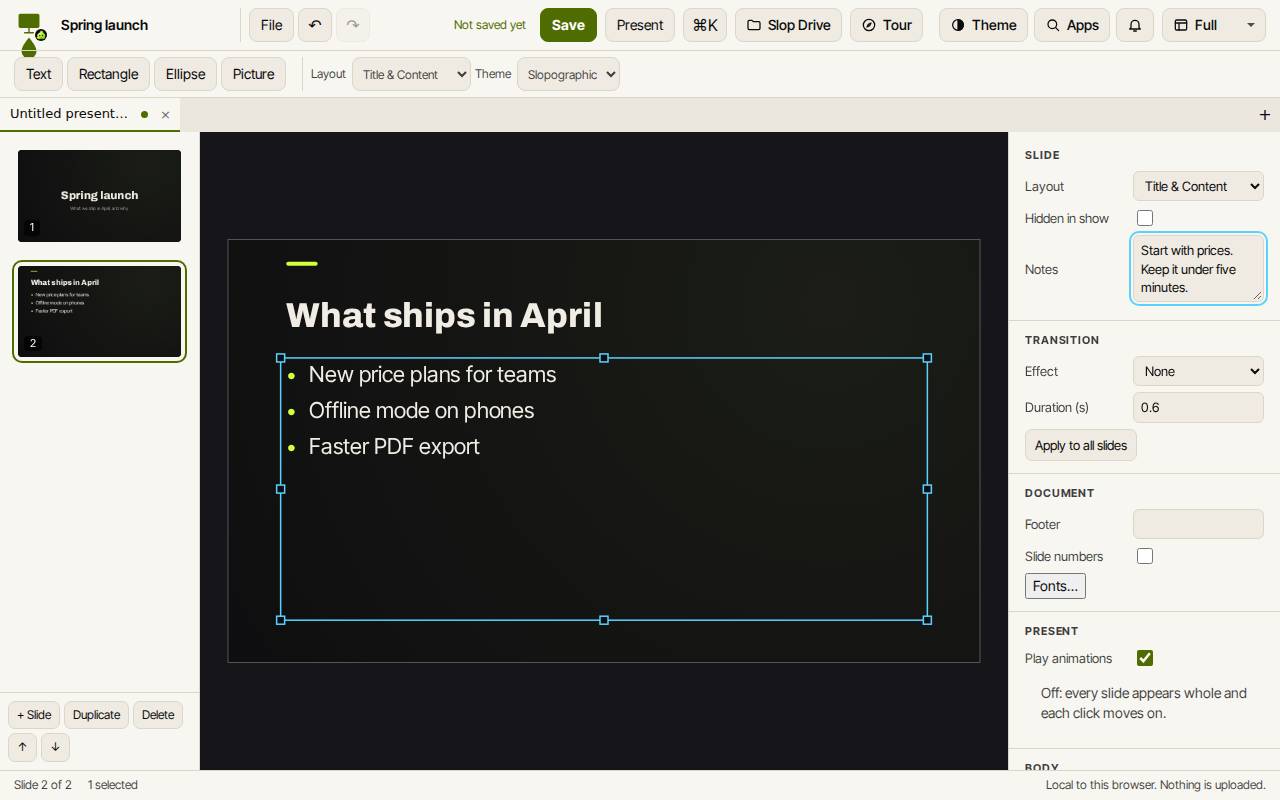
The panel on the right is for the slide you are on. Notes are your speaker notes. Hidden in show skips the slide when you present. Transition sets an effect and its duration, and Apply to all slides copies it to the rest.
Under Document you can add a footer text and slide numbers to every slide.
Present
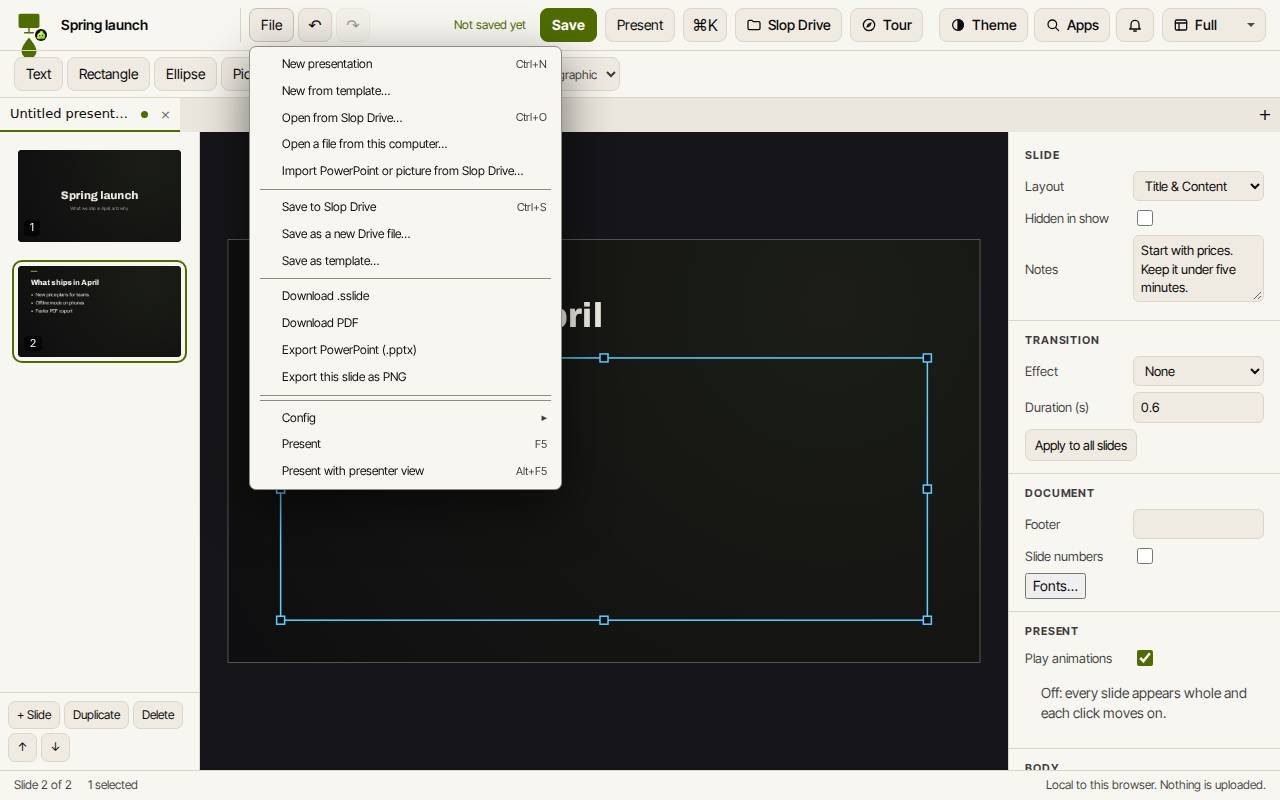
Present with presenter view (Alt+F5) in the File menu shows your notes and the next slide in a second window.
- Click Present, or press F5.
- Press the right arrow, Space or Enter for the next step, and the left arrow for the one before.
- Press Escape to stop.
Save and export
Save (Ctrl+S) keeps the deck in Slop Drive on this device. The File menu also has Download PDF, Export PowerPoint (.pptx), Export this slide as PNG and Download .sslide.
To open a PowerPoint file, choose Open a file from this computer… or Import PowerPoint or picture from Slop Drive….
Keyboard shortcuts
| Keys | What it does |
|---|---|
Ctrl+Shift+Enter | New slide |
T | Insert text box |
Enter | Edit the selected text |
Ctrl+D | Duplicate |
Delete | Delete the selected object |
Ctrl+Shift+] / [ | Bring to front / send to back |
PageDown / PageUp | Next / previous slide |
F5 | Present |
Alt+F5 | Present with presenter view |
Ctrl+S | Save to Slop Drive |