Slop Purchases guide
Getting started with Slop Purchases
Slop Purchases writes purchase orders to your suppliers. When the goods arrive they go into stock in Slop Inventory, and the bill goes into your books.
Write a purchase order
- Choose New purchase order.
- Pick a Supplier, or choose New supplier.
- Set the Date and, if you know it, the Expected date.
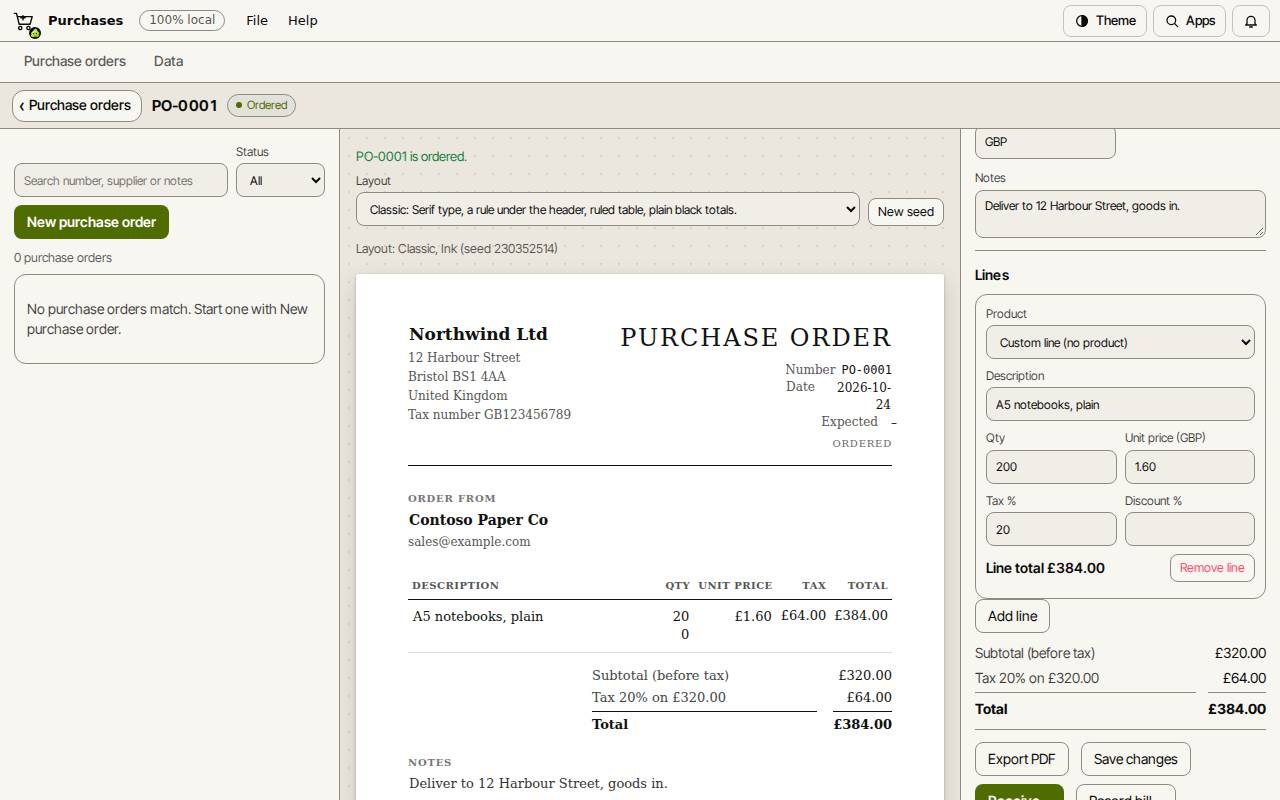
- Add the lines. Pick a Product so that receiving it updates its stock.
- Use Notes for the delivery address or terms, and choose Save draft.
Place it
Choose Place order. The status changes to Ordered. Choose Export PDF to download the order and send it to the supplier.
Receive the goods and record the bill
The bill is posted to your books as a paid expense, with the tax to reclaim, and shows in Slop Expenses.
- When the delivery comes, choose Receive… and confirm. Product lines go into stock at the main location.
- When the bill comes, choose Record bill…. Set the Date, the Category and Paid by, then choose Record bill.
Tip: Slop Inventory can start a purchase order for you from its low-stock list, filled in with the supplier and a quantity.
Keyboard shortcuts
| Keys | What it does |
|---|---|
Ctrl+K | Search commands (Cmd+K on a Mac) |