Slop Paint Classic guide
Getting started with Slop Paint Classic
Slop Paint Classic is a paint program in the style of 1998, in your browser. It has the classic tools, plus a Slop Brush and a Slop Stamp.
Draw
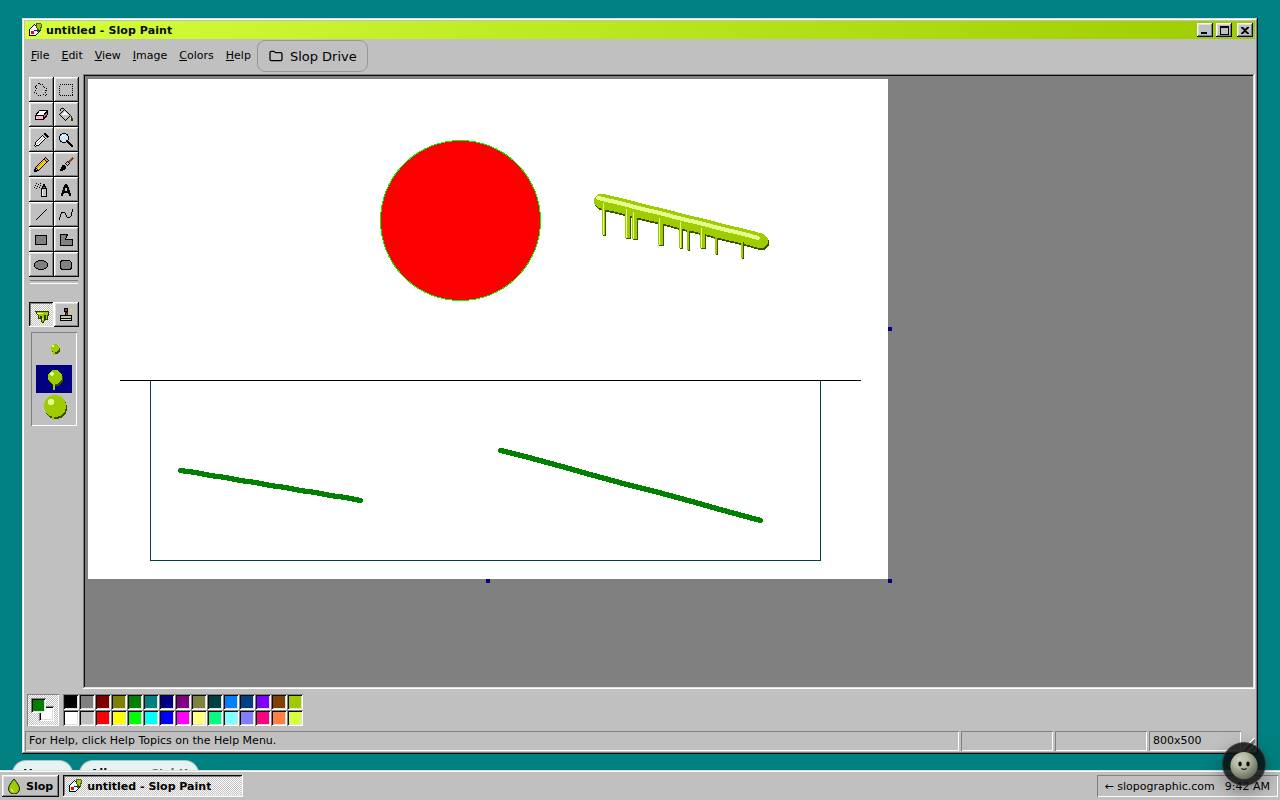
The tools are Free-Form Select, Select, Eraser/Color Eraser, Fill With Color, Pick Color, Magnifier, Pencil, Brush, Airbrush, Text, Line, Curve, Rectangle, Polygon, Ellipse, Rounded Rectangle, Slop Brush and Slop Stamp.
- Click a tool in the toolbox on the left. Point at a tool to see its name.
- Click a colour in the colour box at the bottom to make it the primary colour. Double-click a colour to edit it.
- Drag on the white canvas to draw. Hold Shift with Rectangle or Ellipse for a square or a circle, or with Line to snap to 45 degrees.
- Under the toolbox, pick the size or the fill style of the tool you are using.
Change the picture
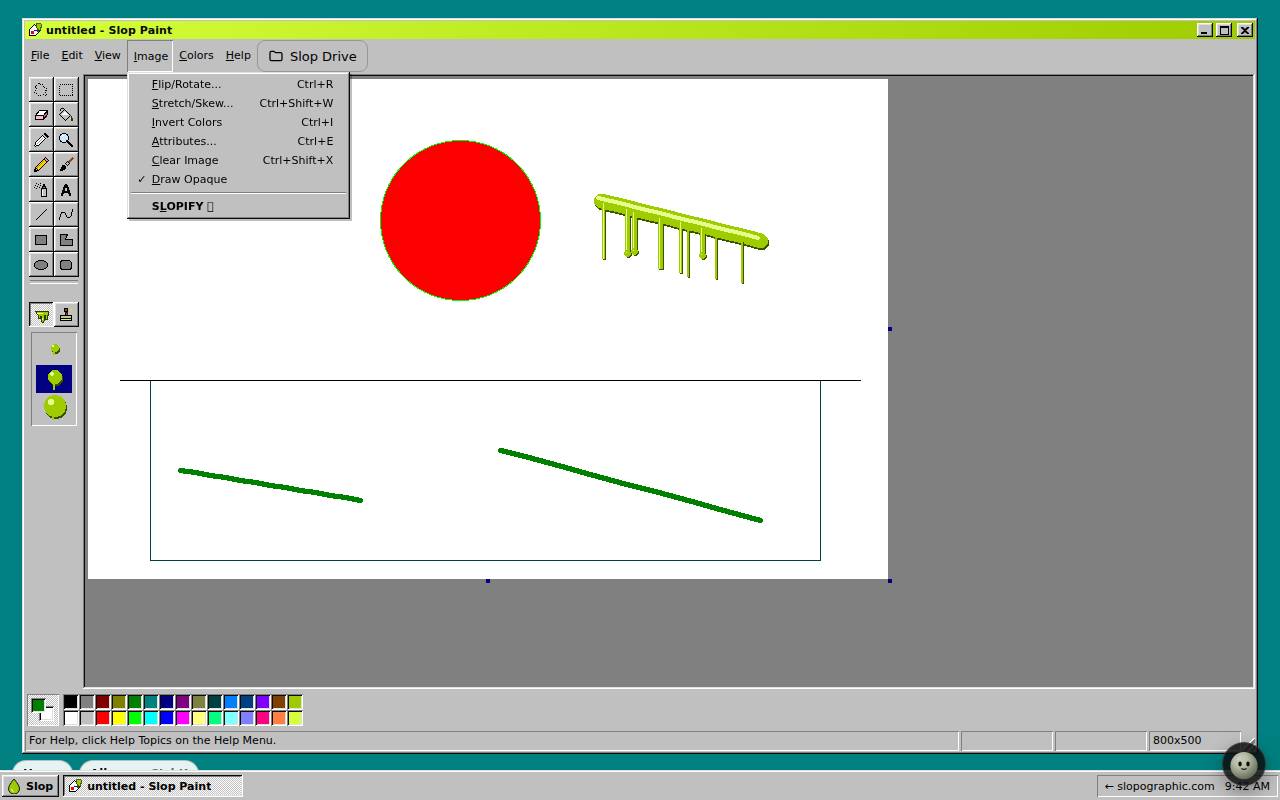
The Image menu has Flip/Rotate… (Ctrl+R), Stretch/Skew… (Ctrl+Shift+W), Invert Colors (Ctrl+I), Attributes… (Ctrl+E) for the canvas size, and Clear Image. SLOPIFY turns the whole picture into slop; Ctrl+Z undoes it.
You can also drag the small handles on the edges of the canvas to resize it.
Open and save
File, Open… (Ctrl+O) opens a picture from your computer, and Open from Slop Drive… opens one from Slop Drive.
File, Save (Ctrl+S) downloads the picture as a PNG file. Save As… lets you give it a new name first.
Tip: Help, Search Commands… (Ctrl+K) finds any menu item by name, and Help, Keyboard Shortcuts… lets you change the keys.
Keyboard shortcuts
| Keys | What it does |
|---|---|
Ctrl+Z / Ctrl+Y | Undo / repeat |
Ctrl+A | Select all |
Delete | Clear the selection |
X | Swap primary and secondary colours |
Ctrl+G | Show grid |
Ctrl+PageUp / Ctrl+PageDown | Normal / large size |
Ctrl+O / Ctrl+S | Open / save |