Slop Calendar guide
Getting started with Slop Calendar
Slop Calendar keeps your events in this browser. It shows your to-dos from Slop To-do too, and reminds you before things start.
Add an event
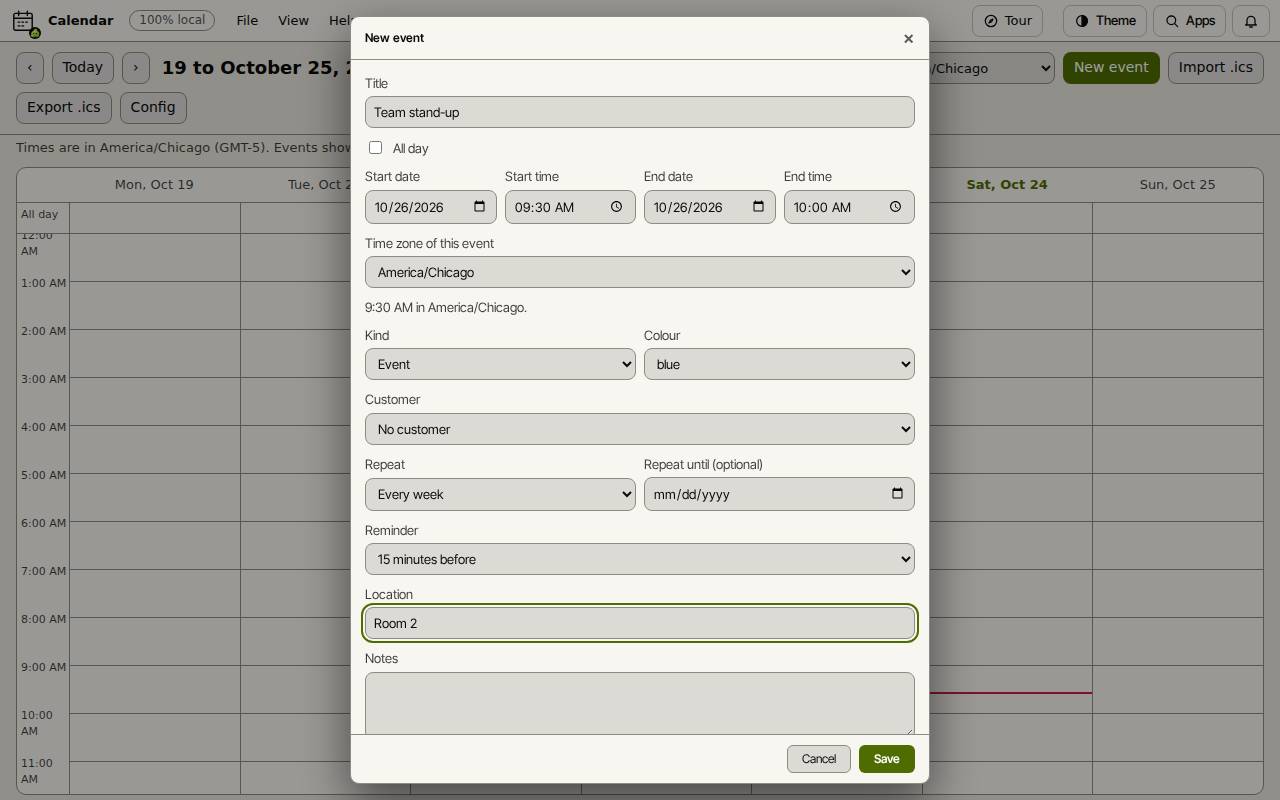
- Choose New event.
- Type a Title. Set the Start date, Start time, End date and End time, or tick All day.
- Pick the Time zone of this event if it happens somewhere else.
- Choose a Repeat (such as Every week) and a Reminder (such as 15 minutes before) if you want them. Add a Location and Notes.
- Choose Save.
Find your way around
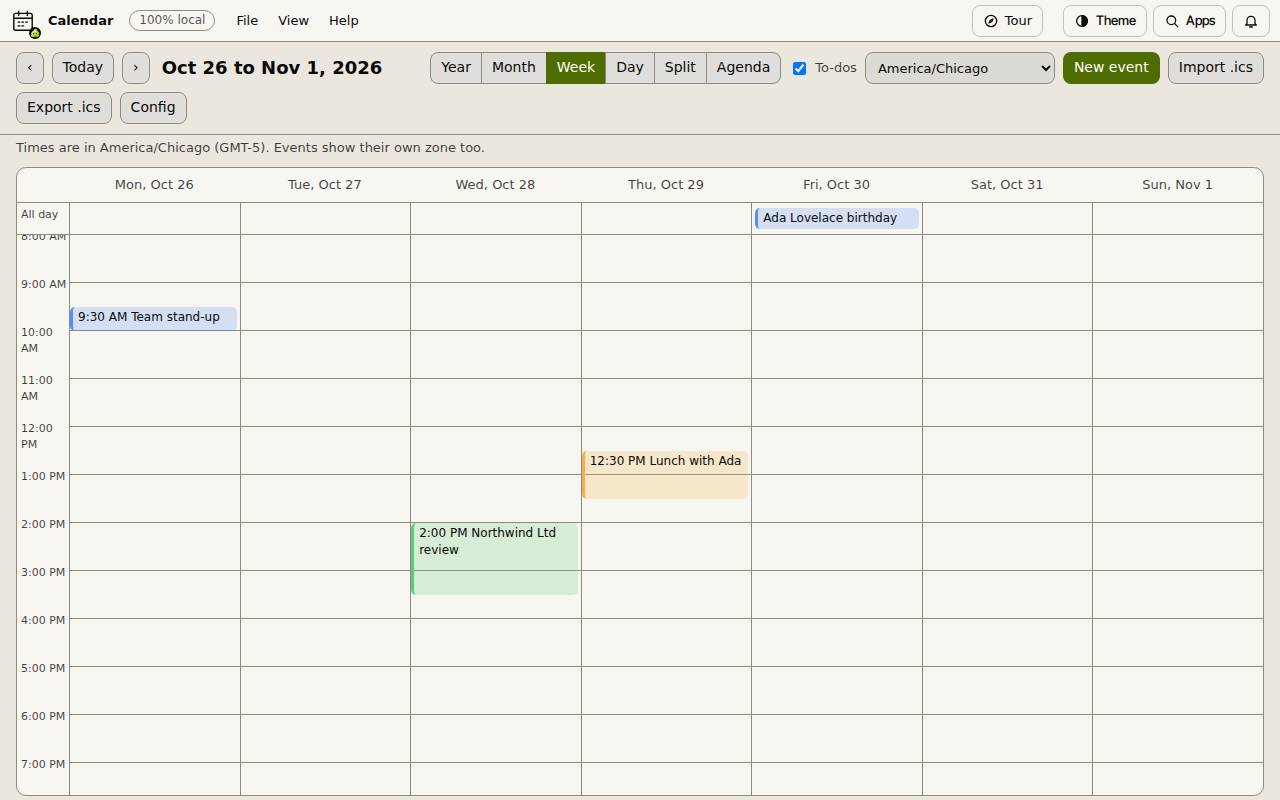
Year, Month, Week, Day, Split and Agenda change the view. The arrows move to the previous or next period, and Today comes back. Drag an event to move it.
The zone menu picks the time zone the calendar is shown in; events in another zone show theirs too. The To-dos box shows or hides tasks from Slop To-do.
Bring in another calendar
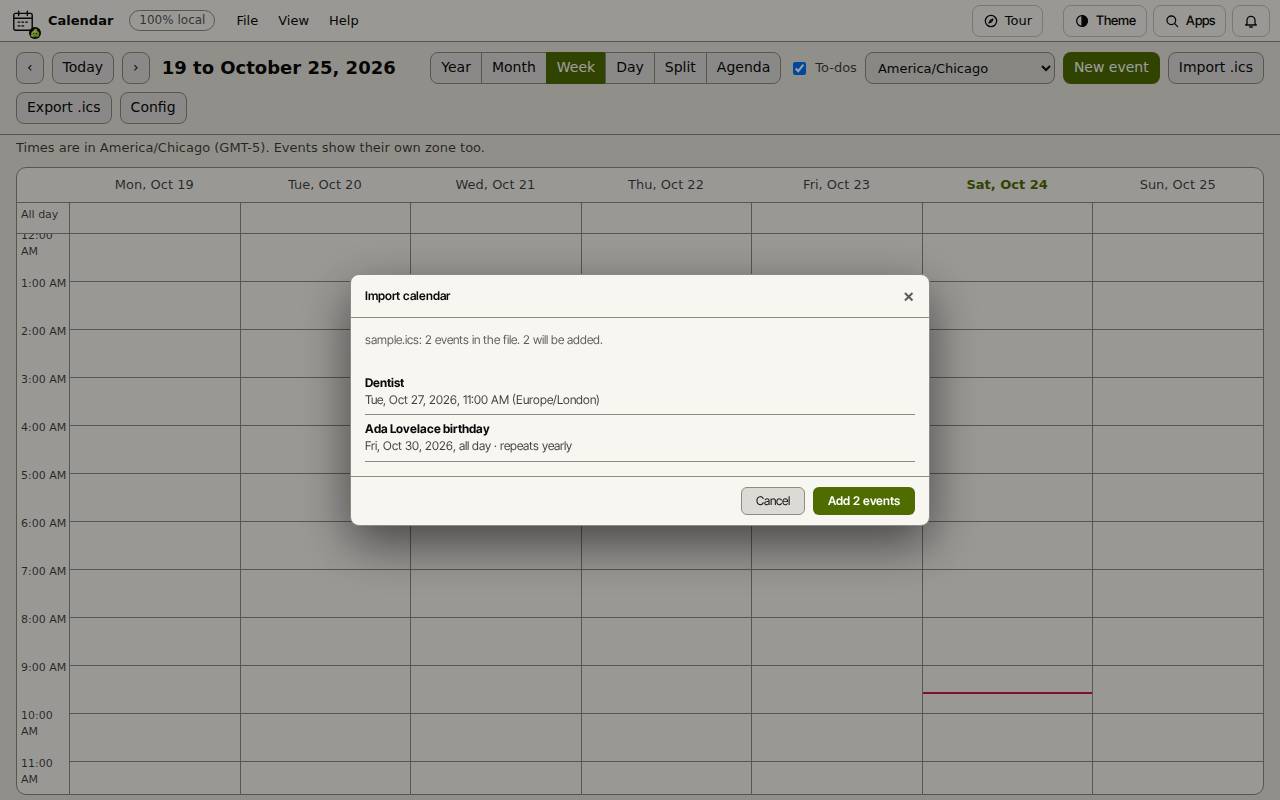
Import .ics reads a calendar file from Google Calendar, Outlook or Apple Calendar. It lists the events it found and how many will be added; choose Add to bring them in (the button says how many). Export .ics saves your events as a file for those programs.
Keyboard shortcuts
| Keys | What it does |
|---|---|
N | New event |
T | Go to today |
← / → | Previous or next period |
Y / M / W / D | Year, month, week or day view |
S | Split view |
A | Agenda |
K | Show or hide to-dos |
Ctrl+Z | Undo a drag |