Slop Time guide
Getting started with Slop Time
Slop Time shows the time around the world, plans meetings across time zones and converts times. It uses your device clock and nothing is sent anywhere.
Build your world clock
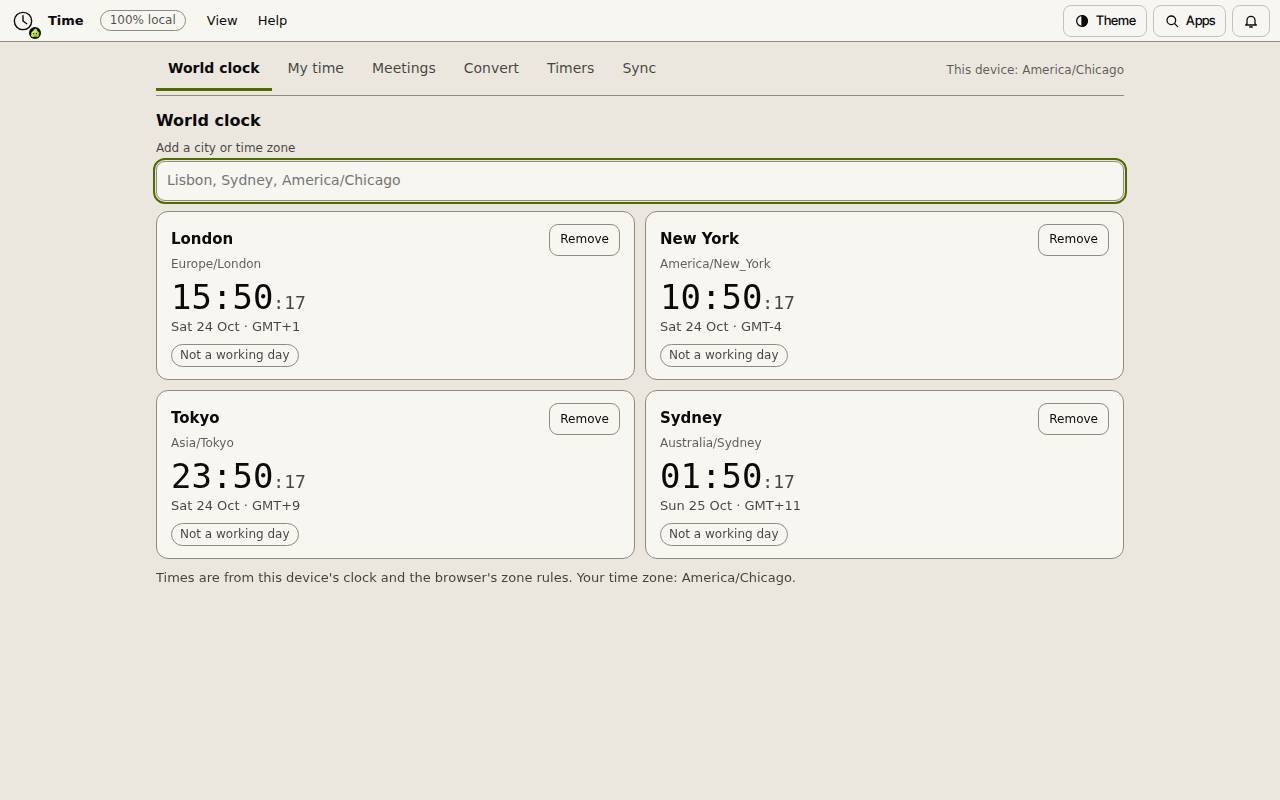
The World clock tab starts with London, New York and Tokyo. Type a city or zone in Add a city or time zone and press Enter to add it. Each card shows the time, the day, the offset from GMT and whether it is a working day there. Remove takes a city off.
Plan a meeting
- Set your working hours and days on the My time tab.
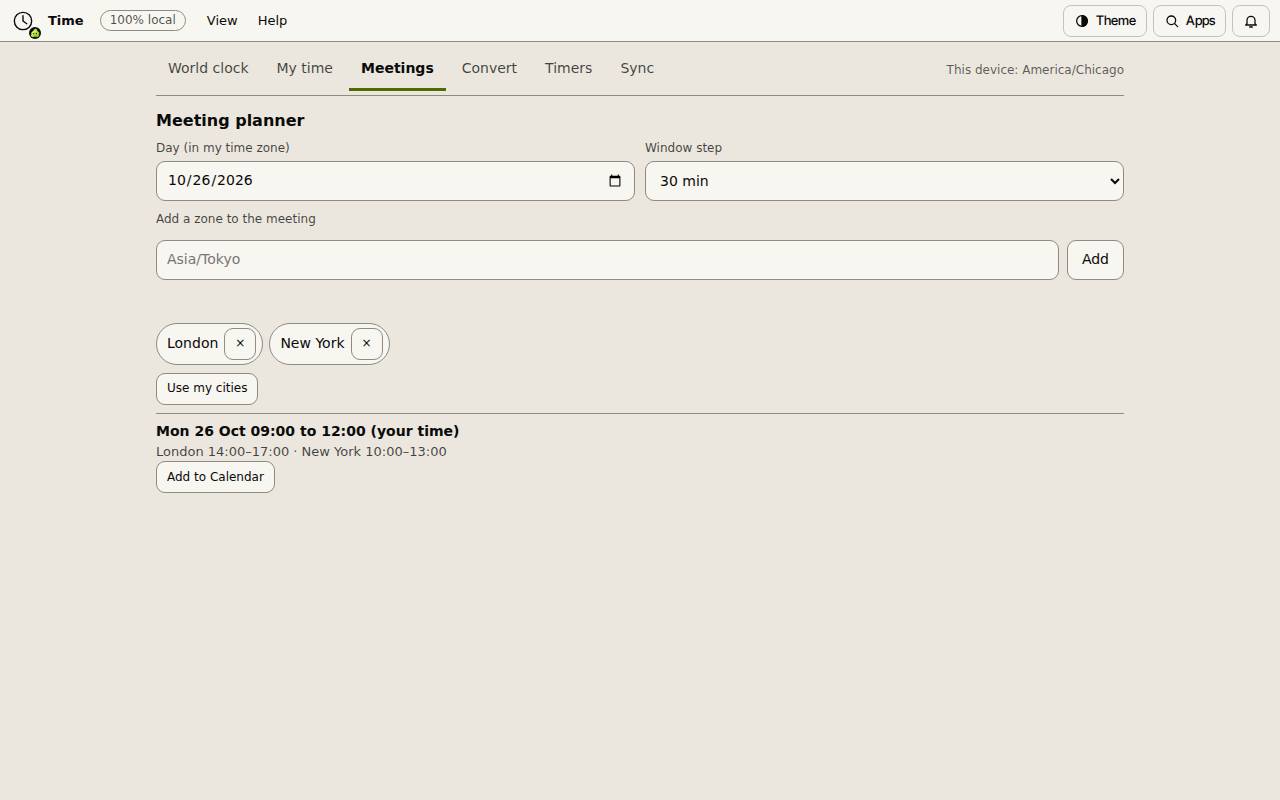
- Open Meetings and pick the Day.
- Add the zones of the people you are meeting, or choose Use my cities.
- The planner lists every window when everyone is inside working hours, with each local time. Add to Calendar puts one into Slop Calendar.
Convert a time
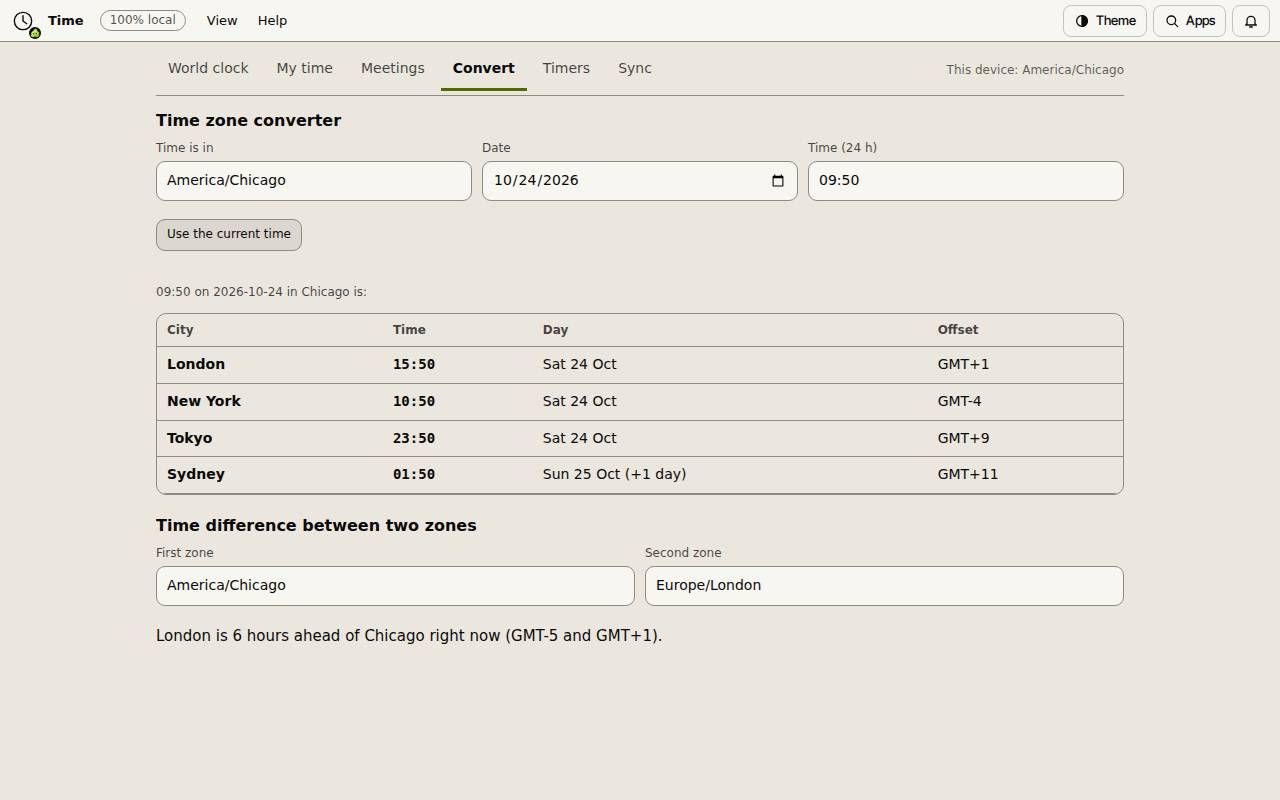
On the Convert tab, type a time and pick the zone it is in, or choose Use the current time. Every city in your list is shown with its time and day. Below, Time difference between two zones says how far apart two zones are right now.
Timers and clock offset
Timers has a stopwatch with laps and a countdown that takes 5, 4:30 or 1:05:00. Sync lets you type a time from a source you trust; Slop Time then shows the clocks moved by the difference. It never fetches the time itself.
Keyboard shortcuts
| Keys | What it does |
|---|---|
Ctrl+Alt+1 to 6 | Open World clock, My time, Meetings, Convert, Timers or Sync |
Ctrl+Alt+A | Add a city |
Ctrl+Alt+G | Start or stop the stopwatch |
Ctrl+K | Search commands (Cmd+K on a Mac) |