Slop Quotes guide
Getting started with Slop Quotes
Slop Quotes writes quotes and estimates for your customers. When a customer says yes, the quote becomes an order or an invoice without typing it again.
Write a quote
- Choose New quote.
- Pick a Customer, or choose New customer.
- Check the Date and the Valid until date.
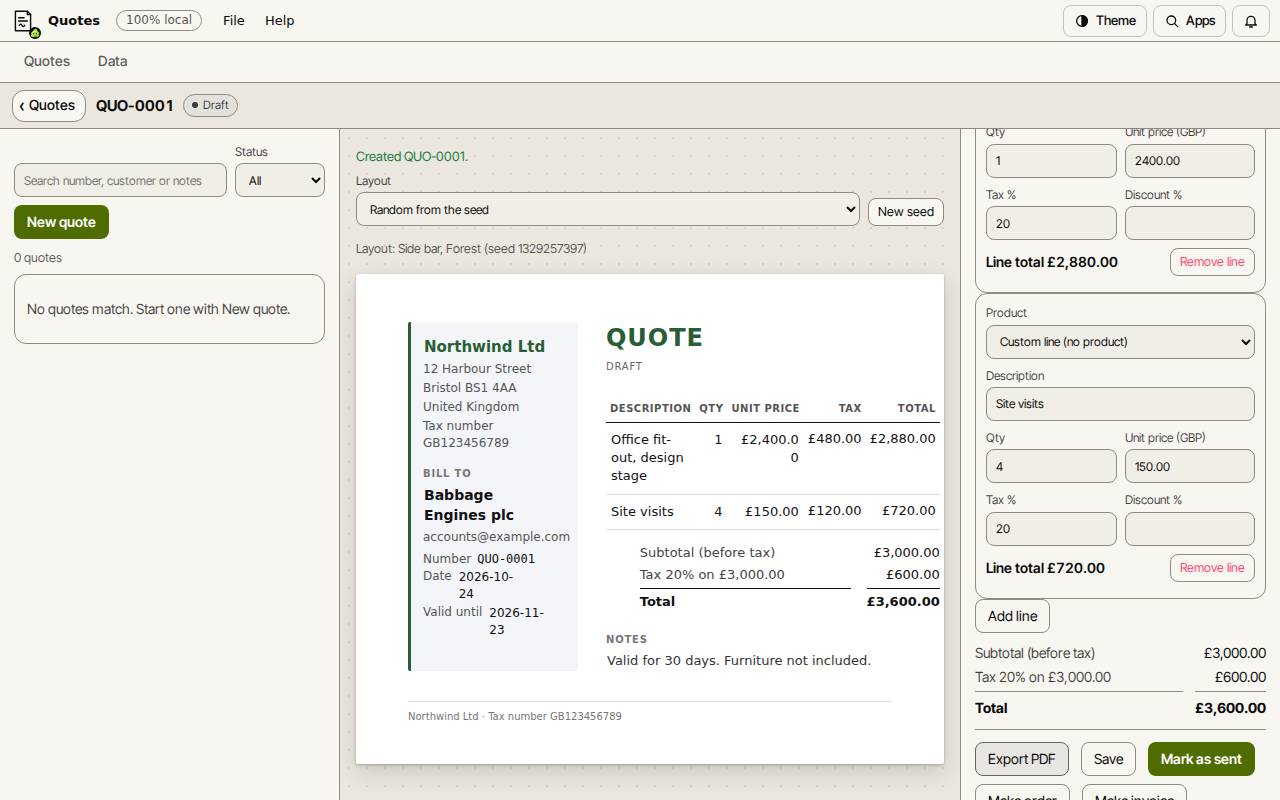
- Fill in the lines: Description, Qty, Unit price and Tax %. Choose Add line for more.
- Use Notes for the scope and what is not included, then choose Save draft.
Send it
Choose Export PDF to download the quote and send it to your customer. Then choose Mark as sent, so the list shows which quotes are waiting for an answer.
A draft or sent quote past its Valid until date shows as Expired. Change the date to offer it again.
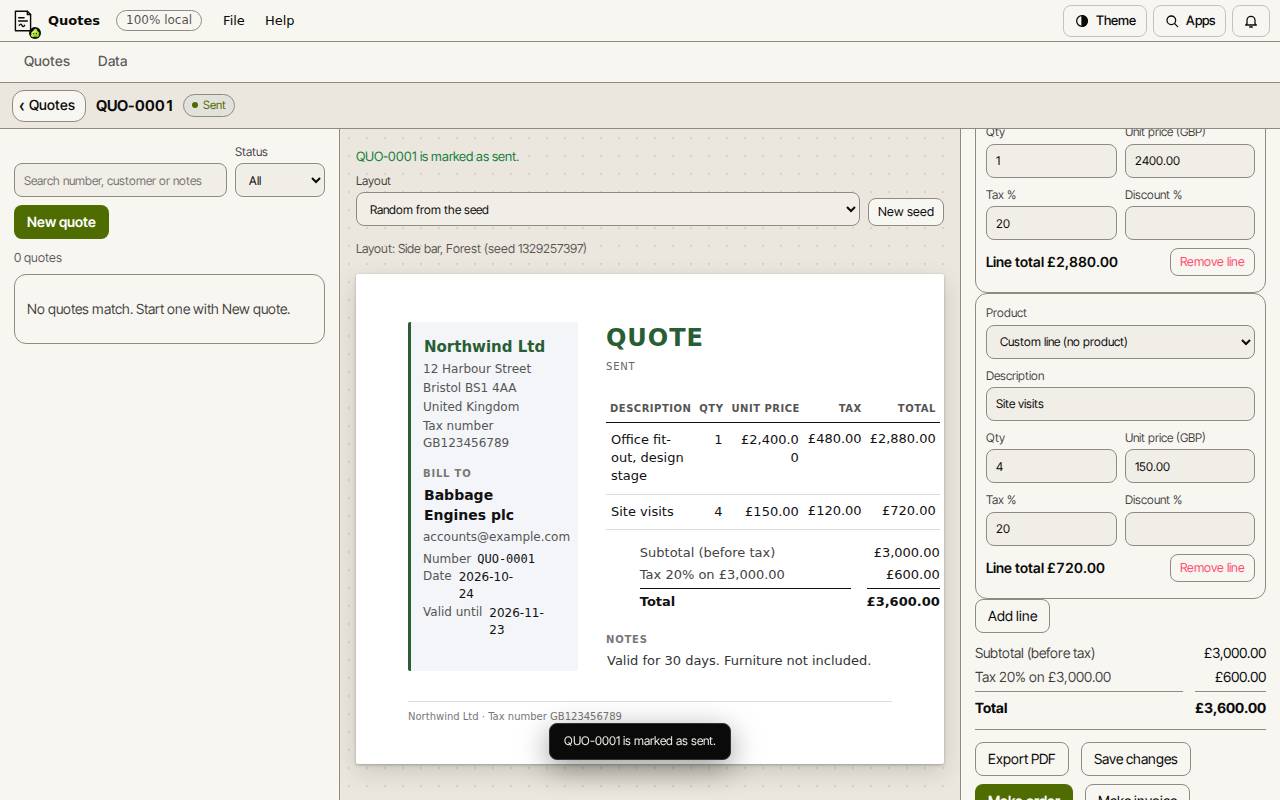
When the customer answers
A quote can be turned into an order or an invoice once. It keeps a link to what was made from it. Nothing goes into your books until that invoice is issued.
- If they accept, choose Mark accepted, or go straight to Make order or Make invoice.
- Make order makes a confirmed order in Slop Orders. Make invoice makes a draft invoice in Slop Invoices.
- If they say no, choose Decline…. A declined quote can be reopened later with Reopen.
Keyboard shortcuts
| Keys | What it does |
|---|---|
Ctrl+K | Search commands (Cmd+K on a Mac) |