Slop Admin guide
Getting started with Slop Admin
Slop Admin holds the settings the business apps share: your company profile, the numbering of your documents, and the backup of everything.
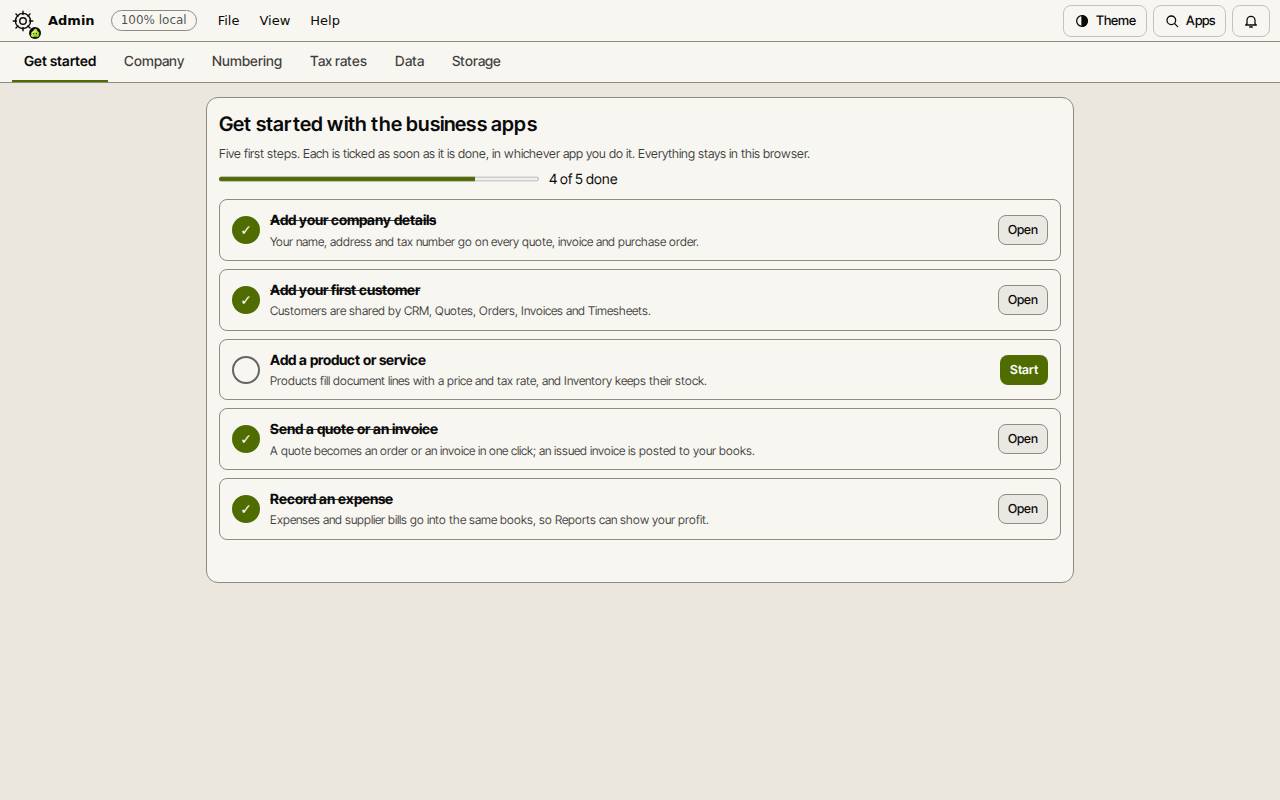
Follow the first steps
The Get started tab lists five first steps: your company details, your first customer, a product or service, a quote or an invoice, and an expense. Each is ticked as soon as it is done, in whichever app you do it. Start opens the app for that step.
Fill in your company profile
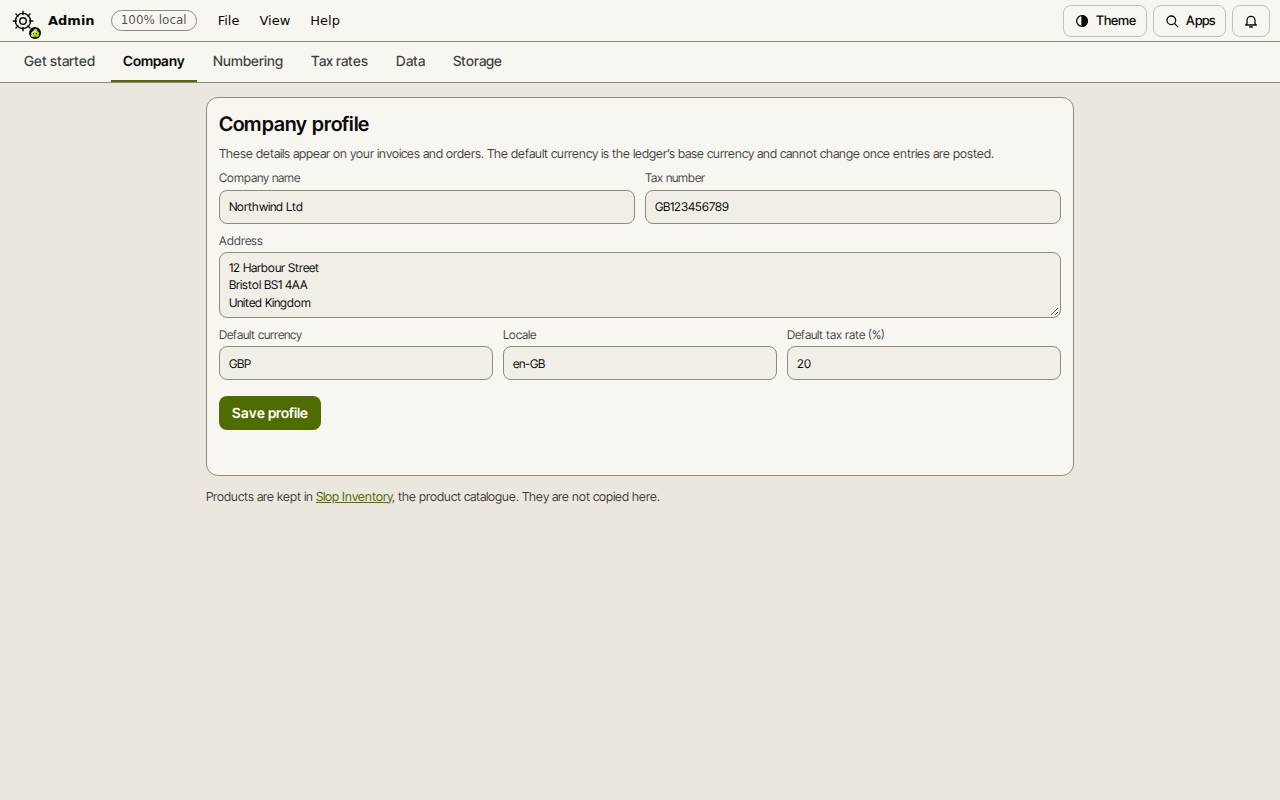
These details appear on your quotes, orders, invoices and purchase orders. The default currency is the base currency of your books, so it cannot change once anything is posted.
- Open the Company tab.
- Fill in the Company name, Tax number and Address.
- Set the Default currency (such as GBP or USD), the Locale (such as en-GB) and the Default tax rate (%).
- Choose Save profile.
Numbering and tax rates
Numbering shows each sequence with its prefix, digits and next number, with a preview. Numbers are gapless, and the next number can only move forward.
Tax rates lists the rates your products use and how many products carry each. Rates are set on each product in Slop Inventory.
Back up and restore
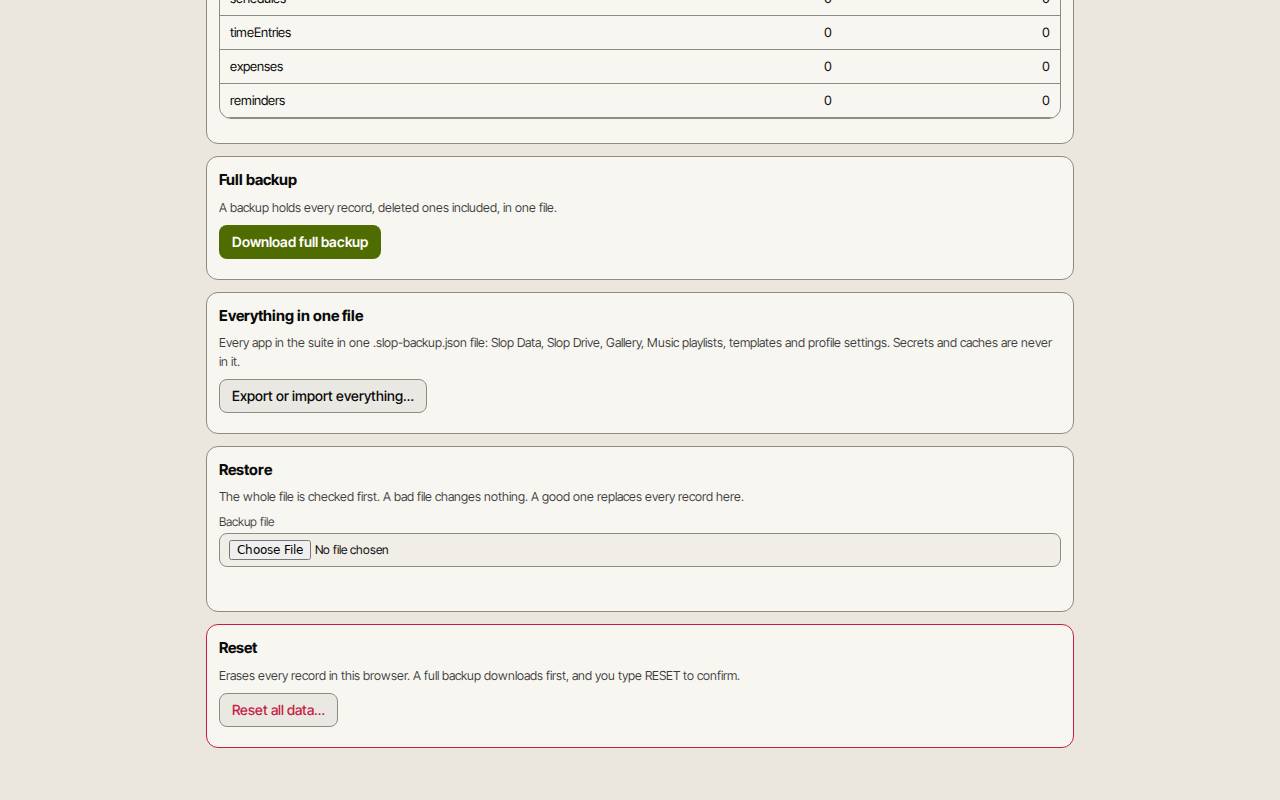
Everything is kept in this browser on this device. On the Data tab, Download full backup saves every record in one JSON file. Export or import everything… puts every app in the suite, Slop Drive included, in one .slop-backup.json file. Restore checks a backup file first and asks before it replaces anything.
Reset all data… asks you to type RESET, downloads a backup, and only then erases everything. The Storage tab shows the space used and can ask the browser to keep your data.